Instagram Professional Dashboard: How It Works (2026)

The Instagram Professional Dashboard is the built-in hub on Creator and Business accounts where you see your performance, turn on professional features, and get Meta's growth tips in one place. If you run a coaching or creator business on Instagram, it is the free control panel that tells you whether your content is actually pulling profile visits, link taps, and DMs, or just likes.
Most people open it once, glance at the numbers, and never come back. That is a mistake. Read correctly, the dashboard tells you exactly where your funnel leaks between "someone saw my reel" and "someone booked a call." This guide explains what the Professional Dashboard is, how to find and turn it on, what every section does, and how to turn those insights into booked sales calls.
What Is the Instagram Professional Dashboard?
The Professional Dashboard is a single screen that Meta gives to every professional account (Creator or Business) as the entry point to your analytics and pro tools. Think of it as the "back office" of your Instagram profile: it is not shown to your audience, only to you.
It pulls together three things that used to be scattered across the app:
- Insights (formerly the standalone "Instagram Insights" screen): reach, interactions, profile activity, and your audience breakdown.
- Tools: the professional features you can enable, such as branded content, Instagram Shopping, subscriptions, saved replies, and quick-reply setups.
- Tips and resources: Meta's own educational content, milestones, and product announcements.
Personal accounts do not have it. If you cannot see the link, you are almost certainly still on a personal account and need to switch (covered below). The dashboard is the same idea Meta ships on Facebook, where the Facebook professional dashboard plays the same role for a Page.
For a coach or creator, the important reframe is this: the dashboard is not a vanity screen. It is the closest thing Instagram gives you to a funnel report, and it feeds directly into your Instagram sales funnel and your DM booking system.
How to Find and Turn On the Professional Dashboard
Direct answer: switch to a professional account, open your own profile, and tap the "Professional dashboard" link that appears just under your bio. It takes about a minute.
Here is the full sequence:
- Switch to a professional account. Go to Settings, tap Account type and tools, then Switch to professional account. Choose Creator (best for coaches, personal brands, and content creators) or Business (best for agencies and local businesses). Switching is free and reversible.
- Open your profile. Tap your profile photo in the bottom right corner.
- Tap Professional dashboard. It sits directly under your bio and action buttons. On some accounts it shows a preview stat, such as recent reach, right on the button.
- Explore the three sections. Insights at the top, Tools in the middle, Tips and resources at the bottom.
- Act on one thing. Do not just look. Pick a single metric to improve this week and one tool to enable.
Creator versus Business is the most common point of confusion. Both unlock the dashboard. The practical difference is that Business accounts get access to some scheduling and integration features and can list a physical address, while Creator accounts keep the flexible category labels and creator-specific monetization tools. For a solo online coach, Creator is usually the right call. Whichever you pick, you can revisit the choice later.
Inside the Dashboard: The Three Sections That Matter
Once you are in, the dashboard is stacked top to bottom. Here is what each block does and what to ignore.
| Section | What it holds | Why a coach cares |
|---|---|---|
| Insights | Reach, interactions, profile visits, external link taps, follower growth, top content, audience data | This is your funnel report. Everything that matters lives here. |
| Tools | Branded content, Shopping, subscriptions, saved replies, quick replies, monetization eligibility | Useful selectively. Turn on the ones that route people into DMs. |
| Tips and resources | Meta's educational articles, milestones, product news | Skim once. Low priority versus the numbers above. |
Insights: your real funnel report
Tap "See all" under Insights and set the range to the last 30 days. You will see:
- Reach: how many unique accounts saw your content, split by followers versus non-followers. A high non-follower share means the algorithm is distributing you, which is your top-of-funnel fuel.
- Interactions: likes, comments, shares, saves. Shares and saves matter far more than likes because they signal intent.
- Profile activity: profile visits, external link taps, and business address taps. This is the bridge between content and conversation.
- Audience: top locations, age range, and most active times. Use active times to schedule stories and posts.
- Top content: your best posts, reels, and stories by reach or interactions over the range.
If you only track one thing, track the ratio of reach to profile visits to link taps to DMs. That chain is your entire acquisition system in four numbers.
Tools: turn on the ones that create conversations
Most tools are optional. The ones worth enabling for a coaching or creator business are the features that either drive people to message you or help you handle the messages faster: saved and quick replies, Shopping if you sell a product, and subscriptions if you run a paid community (see our Instagram subscriptions guide). Ignore the rest until you have a reason.
Tips and resources: skim and move on
The educational cards are fine for a rainy day, but they will not move your numbers. Read the Insights, act, and come back next week.
The Metrics Coaches Should Actually Watch
The dashboard shows dozens of numbers. Four of them predict revenue for a service business; the rest are noise.
- Profile visits. Content exists to earn a profile visit. If reach is high but profile visits are low, your hook works but your content is not making people curious about you.
- External link taps. This is the tap on the link in your bio. Low taps usually mean a weak bio and call to action. Fix it with a sharper Instagram bio and a clear link in bio.
- Follower growth from non-followers reached. Growth is only useful if the new followers are your buyer. A top-of-funnel follower growth push is worth nothing if none of them ever message you.
- Content that drives saves and DMs. Find the two or three posts that reliably start conversations, then make more of those.
Notice what is missing: raw likes and total follower count. Those feel good and predict almost nothing about booked calls.
From Dashboard Insights to Booked Calls
Here is where most coaches stall. The dashboard tells you that people are visiting your profile and tapping your link, but visits and taps are not revenue. The conversation is.
The path is simple to describe and hard to run manually:
- Content earns reach (Insights: reach).
- Reach earns a profile visit (Insights: profile visits).
- A strong bio and offer earn a DM or a link tap (Insights: link taps).
- The DM conversation qualifies the person and books a call.
- You (or your closer) close on the call, not in the chat.
Steps 1 to 3 are what the Professional Dashboard measures. Step 4 is where the money is made or lost, and it is the step Instagram gives you no tooling for. You are left answering DMs by hand, at whatever hour you happen to be awake, which is why so many warm conversations go cold.
That gap is measurable. In our analysis of 828K real DM conversations, a single follow-up message more than doubled booked calls (+106% among engaged leads), yet most accounts never send it because nobody is watching the inbox at the right moment. The dashboard shows you the demand; it does nothing to convert it.
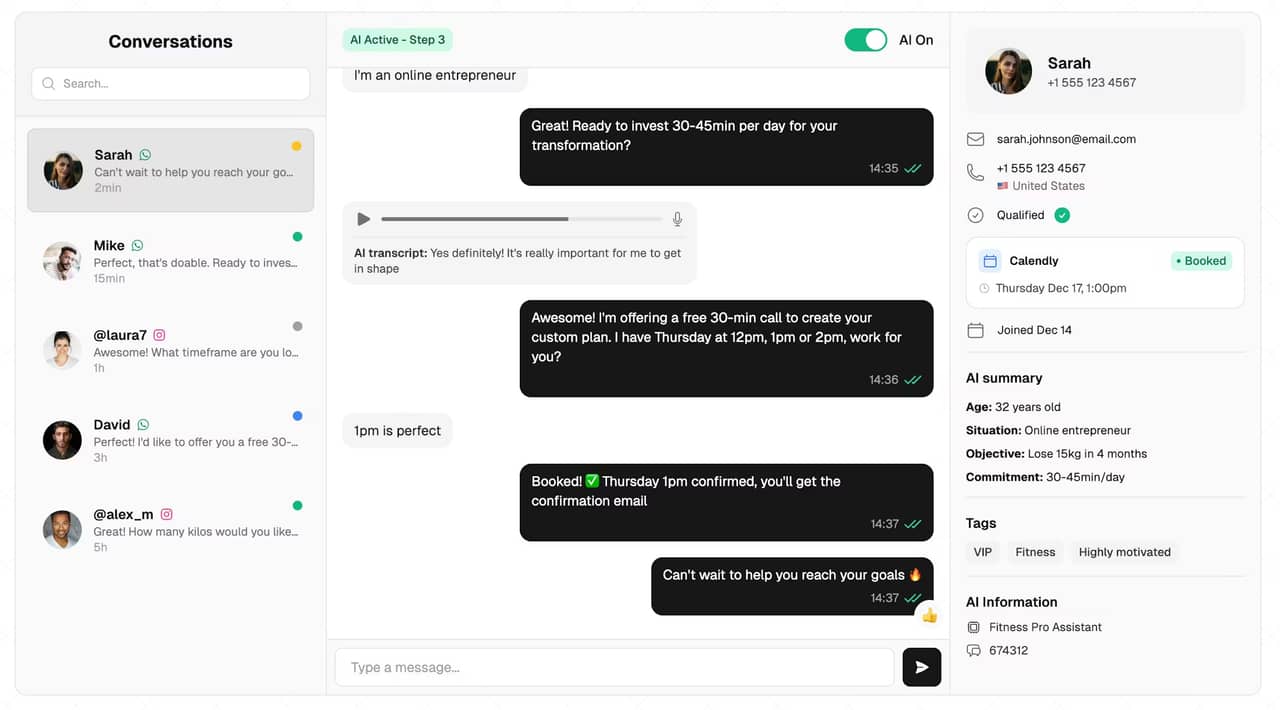
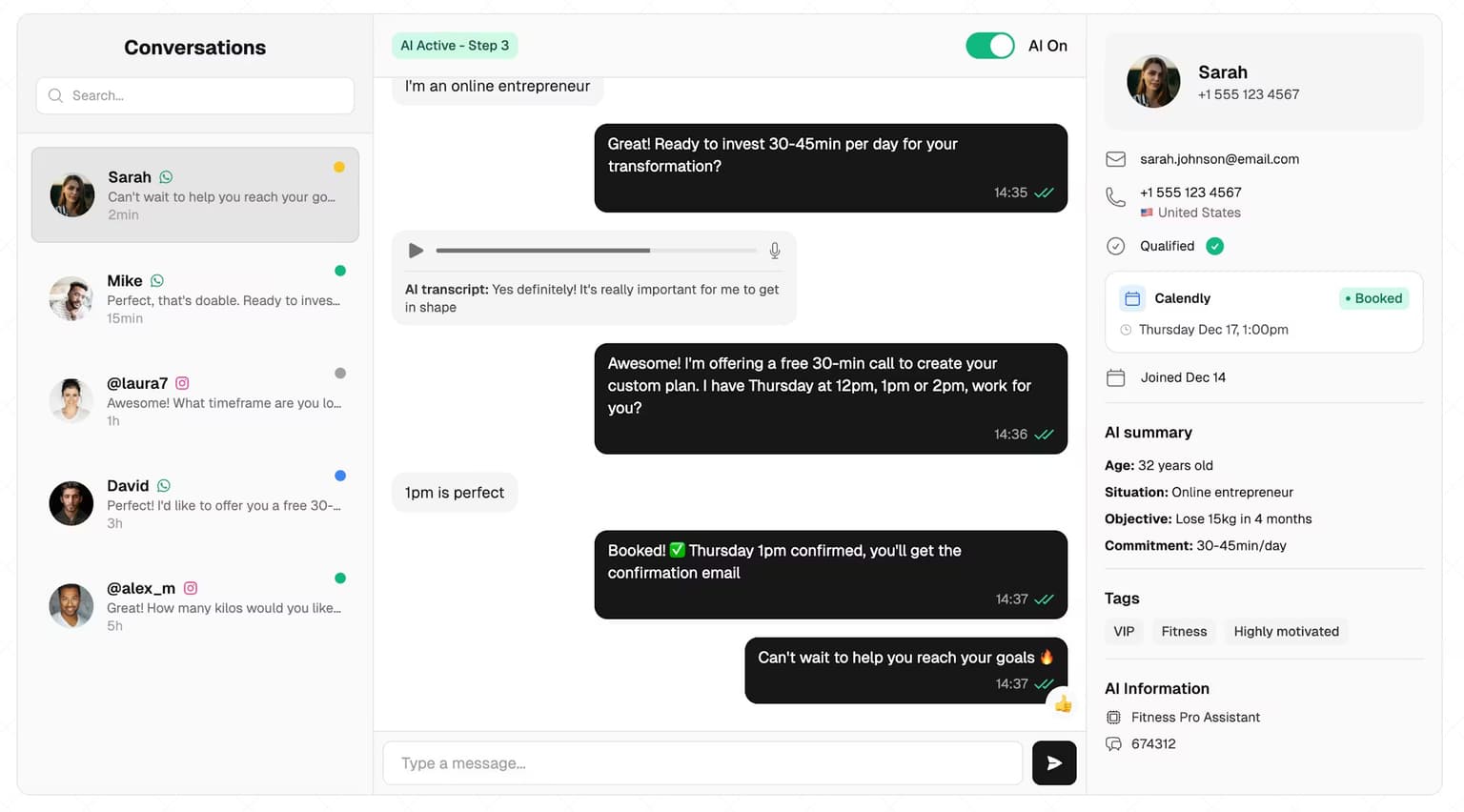
This is the exact job of an AI setter. Instead of you reading the dashboard, seeing profile visits climb, and then losing the resulting DMs, an AI DM setter answers every message in seconds, qualifies the person against your criteria, follows up on the ones who go quiet, and proposes call times, so the traffic your dashboard reports actually turns into a full calendar. If you want the mechanics, see how to automate Instagram DMs with AI and the full Instagram DM automation guide.
The rule to remember: the dashboard fills the top of the funnel; a setter fills your calendar. It qualifies and books the sales call, it does not close high-ticket in the chat. The close is still a human step on the call.
Facebook Professional Dashboard
If you also run a Facebook Page for your coaching business, the Facebook professional dashboard is the same concept. On desktop it lives in the left menu of your Page; on mobile it is under your Page's Professional dashboard entry. It surfaces Page reach, content performance, and the monetization and tools you are eligible for. The metrics map almost one to one with Instagram, which makes sense because both are Meta products, and the same funnel logic applies: reach, to visits, to messages, to a booked call. For most creators, Instagram is the primary channel and Facebook is a secondary surface, but if your audience skews toward Facebook, treat its dashboard with the same discipline.
Whichever platform, the numbers are only worth checking if a message that lands on either one gets a fast, qualified reply. That is a job for Messenger and Instagram DM automation, not for you refreshing analytics.
Professional Dashboard vs Insights vs a DM Setter
People often confuse the native dashboard with third-party analytics tools and with DM automation. They solve different problems. Here is the honest breakdown.
| Job to be done | Professional Dashboard | Third-party analytics | AI DM setter |
|---|---|---|---|
| See reach and engagement | Yes, free | Yes, deeper history | No |
| Export and compare periods | Limited (about 90 days) | Yes | No |
| Reply to and qualify DMs | No | No | Yes, in seconds, 24/7 |
| Book sales calls from DMs | No | No | Yes |
The takeaway: the dashboard is your free measurement layer, and it is genuinely good at that. It was never built to convert. For that you need a system that lives in the inbox, which is why serious coaches pair the dashboard with a DM setter and, once volume grows, an Instagram CRM to keep leads organized. If you want to hire that out to a human instead, understand the tradeoffs first in our appointment setter breakdown, then decide.
A Simple Weekly Routine
You do not need to live in the dashboard. Once a week is enough if you use it well:
- Monday, five minutes: open the dashboard, set the range to 7 days, and note reach, profile visits, and link taps.
- Find the winner: open Top content and identify the one post that drove the most profile visits, then plan a variation of it.
- Fix one leak: if profile visits are high but link taps are low, rewrite your bio. If reach is low, your hooks or posting cadence need work; use our how to sell on Instagram playbook.
- Protect the conversations: make sure every DM the dashboard is driving gets a fast, qualified reply and a call offer. If you are missing messages, that is your single biggest lost-revenue leak.
Discipline beats obsession. Ten focused minutes a week will teach you more about your funnel than daily doom-scrolling of your own stats.
FAQ
What is the Professional Dashboard on Instagram?
It is the built-in hub on Creator and Business accounts that combines your Insights (reach, profile visits, link taps, audience), your professional Tools (features you can enable), and Meta's tips in one screen. It is visible only to you, not your audience, and it acts as the back office for your Instagram business.
How do I turn on professional mode on Instagram in 2026?
Go to Settings, tap Account type and tools, then Switch to professional account, and choose Creator or Business. The switch is free and reversible. Once you are on a professional account, the Professional dashboard link appears just under your bio on your profile.
How do I see the Professional Dashboard on Instagram?
Open your own profile by tapping your photo in the bottom right, then tap the Professional dashboard link directly beneath your bio and action buttons. If you do not see it, you are still on a personal account and need to switch to Creator or Business first.
Does the Instagram Professional Dashboard show who viewed your profile?
No. Instagram does not tell you which individual accounts viewed your profile. The dashboard shows the total number of profile visits over a time range, plus aggregate audience data like top locations and age range, but never a named list of viewers. Any app claiming to reveal profile viewers is not reliable.
How do I remove or turn off the Professional Dashboard?
You cannot hide the dashboard while staying on a professional account, because it is a core part of that account type. To remove it entirely, switch back to a personal account in Settings under Account type and tools. Most coaches should keep the professional account, since a personal account loses Insights and pro tools.
How many followers do I need to make money from Instagram?
Fewer than you think, because income depends on your offer and how many qualified conversations you book, not your follower count. A coach with a few thousand engaged followers and a strong DM to call system can out-earn an account with a hundred thousand passive followers. Use the dashboard to grow qualified profile visits, then route those visitors into booked calls.
Your Professional Dashboard already shows the demand: the reach, the profile visits, the link taps. SetSmart is the AI setter that answers those DMs in seconds, qualifies each person, follows up, and books the call on your calendar. Free 7-day trial, then $97/month with 1,000 messages included.
Ready to automate your DMs?
Start your free 7-day trial and let AI handle your lead qualification 24/7.
Try SetSmart free