Instagram Quick Replies: Setup + 20 Examples (2026)

Instagram quick replies are pre-written answers you save once and drop into any DM with a short shortcut. In 2026 the feature is called Saved replies, it lives under your account's tools and controls instead of the old "Business" menu, and it only exists on professional (Business or Creator) accounts. Type / in a chat, tap the reply you want, tweak it, send.
That is the whole mechanism. The reason this page exists is everything around it: most guides still point to a menu that moved, almost none explain how saved replies differ from instant replies, FAQs, and automated quick-reply buttons, and the examples they offer are written for a pizza shop, not for a coach who needs Instagram DMs to turn into booked sales calls.
Below you get the current setup path, how to use and edit saved replies on mobile and desktop, a clear comparison with Instagram's other reply tools, 20 quick reply examples you can copy, and an honest look at where a manual shortcut stops being enough.
What Are Instagram Quick Replies?
Instagram quick replies are saved message templates tied to a shortcut word. You write the message once (your booking link, a qualifying question, your hours), give it a shortcut such as book, and from then on you can insert the full text into any Instagram Direct conversation in two taps instead of retyping it.
Four facts define how they work in 2026:
- They were renamed. Instagram now labels the feature "Saved replies". Searches, older tutorials, and plenty of help threads still say "quick replies", but it is the same tool.
- They are manual. Nothing is sent automatically. You still open the chat, read it, pick the reply, and press send. A saved reply saves typing, not attention.
- They need a professional account. Personal accounts do not have the option. If you cannot find Saved replies anywhere, this is the reason nine times out of ten. Switching to a Business or Creator account is free and done in Settings.
- They are for DMs only. Saved replies work inside your inbox. They do not reply to comments, Story replies outside the inbox, or posts.
There is a second, more technical meaning of "quick replies" that causes a lot of confusion. In Meta's messaging platform, quick replies are tappable buttons that an automation tool can attach under a message, so the lead answers with one tap instead of typing. That is what ManyChat-style flows use. We cover both meanings in the comparison section below, because picking the wrong one is how coaches end up with a robotic inbox.
How to Set Up Quick Replies on Instagram (2026 Layout)
Setting up quick replies on Instagram takes about two minutes per reply. Here is the current path on iPhone and Android:
- Open Instagram and go to your profile.
- Tap the menu (three lines, top right) and open Settings and privacy.
- Scroll to the section for professionals and tap Business tools and controls (on a Creator account it reads Creator tools and controls).
- Tap Saved replies, then the plus (+) icon.
- In the Shortcut field, type one memorable word with no spaces, such as
bookorgoal. - In the Message field, write the full reply, then tap Save.
If your app still shows the older layout, the path is Settings, then Business (or Creator), then Quick replies. Menu labels shift between app versions and regions, so if neither path matches, use the search bar at the top of Settings and type "saved replies".
Save a reply from a message you already sent
On many app versions you can also build your library from real conversations: tap and hold a message you sent, choose More, and select the option to save it as a quick reply. This is the fastest way to start, because your best replies are usually ones you already wrote under pressure and that worked.
Setting up saved replies on desktop
On desktop, saved replies live in the Meta Business Suite inbox, where Meta describes them as a way to "respond quickly to messages by saving answers to frequently asked questions". If your Instagram account is linked to a Facebook Page, open Business Suite, go to Inbox, and you will find saved replies in the reply toolbar, alongside instant replies and away messages. Teams that share an inbox usually manage the library here, because it is easier to keep one consistent set of answers for every person replying.
Why you cannot find quick replies on Instagram
If the option is missing, check these in order:
- Account type. Personal accounts have no saved replies. Switch to Business or Creator.
- App version. Update Instagram. The feature moved menus, and old builds show the old path.
- Wrong menu. Look under "tools and controls", not under "Messages and story replies".
- Rollout differences. Some features reach regions and account types at different times. The Settings search bar is the quickest way to confirm what your account has.
How to Use a Quick Reply in an Instagram DM
Using a quick reply takes three moves:
- Open the conversation you want to answer.
- Type
/to see your full list of saved replies, or type the shortcut word itself (for examplebook). A suggestion appears above the keyboard. - Tap the reply to drop it into the message box, edit anything that should be personal, and send.
That edit step matters more than it looks. A saved reply that starts with "Hey!" and never uses the person's name reads like a template, because it is one. Leave a placeholder such as [name] or [goal] in the saved text so you are forced to personalize before sending.
How to edit or delete saved replies on Instagram
To edit saved replies on Instagram, go back to Settings and privacy, then Business (or Creator) tools and controls, then Saved replies. Tap the reply you want to change, edit the shortcut or the message, and tap Save. To remove one, open it and choose Delete saved reply.
How to turn off quick replies on Instagram
There is no single master switch for saved replies in most app versions. Suggestions only appear when you type / or a shortcut you created, so if they keep popping up, the clean fix is to delete the replies you no longer use, or rename shortcuts that collide with words you type every day (a shortcut called hi will trigger on every greeting).
Quick Replies vs Instant Replies vs FAQs vs Automation
Instagram has five different things that sound like "quick replies". They solve different problems, and mixing them up is the most common setup mistake we see.
| Tool | What it does | Sent automatically? | Best for |
|---|---|---|---|
| Saved replies (quick replies) | Inserts a pre-written message via a shortcut | No, you send it | Repeated answers while you are in the inbox |
| Instant reply | Sends one fixed message when someone messages you | Yes, same text for everyone | "Got your message" acknowledgement |
| Away message | Sends a fixed message outside the hours you set | Yes, outside your hours | Setting expectations at night or on weekends |
| FAQs on chats | Shows up to four tappable questions with preset answers when a chat opens | Yes, when tapped | Steering a new conversation toward your offer |
| API quick-reply buttons and AI replies | An official tool reads each message and responds, with buttons or natural text | Yes, per message | Answering, qualifying, and following up at volume |
A few clarifications that come up constantly:
- Are instant replies public on Instagram? No. An instant reply is a DM, so only the person who messaged you sees it. Nothing appears on your profile or posts.
- Instant reply vs saved reply. The instant reply fires on its own when a conversation starts. The saved reply waits for you. Most accounts should use both: an instant reply to acknowledge, saved replies for the human answer that follows. Our Instagram auto reply guide has templates for the automatic side, including the very first message a new lead sees.
- FAQs are a routing tool. With only four slots, use them to split intent ("I want to lose weight", "I want info on coaching", "I am a client") rather than to answer trivia.
- Buttons vs natural language. Tappable quick-reply buttons are great for a menu of choices, and weak when a lead types something the flow did not expect. That trade-off is the core of the Instagram DM automation decision, and it is also why many coaches move from button flows to conversational AI.
All four native tools are free and sit inside the inbox features you unlock with a professional account. Only the fifth row needs a third-party tool.
20 Instagram Quick Reply Examples for Coaches
Most quick reply examples online are written for shops ("We ship in 3 days!"). If you sell coaching, a program, or any offer that closes on a call, your DMs have a different job: open the conversation, learn whether the person is a fit, and get a qualified lead onto your calendar. These 20 saved replies follow that sequence. Replace the bracketed parts before saving, and keep each one to a single question so the lead has one easy thing to answer.
Opening replies (start the conversation)
/hey: "Hey name, thanks for reaching out! What made you message today?"/kw(for keyword DMs from a post or Story): "Here you go: link. Quick question so I can point you to the right next step: what is your main goal right now?"/story: "Thanks for replying to my Story, name! Is that something you are dealing with right now?"/new: "Welcome! Before I send you anything, tell me a bit about where you are at with topic. Just getting started, or already tried a few things?"
Qualifying replies (learn if they are a fit)
/goal: "Love that. If we fast-forward 90 days and this worked, what would be different for you?"/tried: "Makes sense. What have you already tried, and what got in the way?"/why: "Why is now the right time to fix this, rather than in six months?"/help: "Are you looking to do this on your own, or would you want someone guiding you step by step?"/invest: "Fair question. My coaching is a real investment, so I like to check first: are you in a position to invest in yourself if it is the right fit?"
The qualifying questions are where most of the value sits. If you want a deeper bank of them, our list of lead qualification questions is built for exactly this DM-to-call flow.
Booking replies (get the call on the calendar)
/call: "Based on what you shared, I think a quick call makes sense. It is free, 20 minutes, and we will map out your next steps. Want me to send a few times?"/book: "Here is my calendar: link. Grab whatever slot works, and tell me if none of them fit."/slots: "I have day at time or day at time. Which one works better for you?"/booked: "You are booked for day at time! You will get a confirmation by email. Anything you want me to know before we talk?"/prep: "Looking forward to our call! To make it useful, have a think about one question. See you day."
Keep the call framing honest: the DM books the conversation, and the discovery call is where you and the lead decide whether to work together.
Follow-up replies (revive quiet threads)
/bump: "Hey name, just bumping this in case it got buried. Still keen to goal?"/checkin: "No pressure at all, just checking in. Did you get a chance to look at the times I sent?"/last: "I will leave this here so I do not clog your inbox. If goal is still a priority, reply 'yes' and I will send the link again."
Objection and admin replies
/price: "Totally fair to ask. It depends on what you need, which is exactly what we figure out on the call. Want me to send a couple of times?"/results: "Great question. Here are a few client stories: link. Which one sounds closest to where you are?"/away: "Got your message! I am with clients right now and will reply properly by time."
Notice what is missing: no wall of text, no five-paragraph pitch, no price dumped in the DM. Each saved reply moves the lead one step and ends with a question. For full conversation templates rather than single messages, see our Instagram DM scripts.
How to Write Saved Replies That Do Not Sound Canned
A good Instagram quick reply is invisible: the lead should not be able to tell you used one. Five rules get you there:
- One question per message. Two questions in one DM gets one answer, usually to the easier question.
- Leave a gap to personalize. A
[name]or[goal]placeholder forces a two-second edit, which is the difference between a template and a reply. - Match your voice. If you write in lowercase with no exclamation marks on your posts, your saved replies should too. Leads notice the switch.
- Keep shortcuts boring and memorable.
book,goal,bump. A shortcut you have to look up is a shortcut you will not use. - Review monthly. Delete replies you never use and rewrite the ones that get no answer. Your library should shrink and sharpen over time, not grow into 60 options you scroll past.
One more tactical point: shortcuts that are real words (like hi or call) can trigger suggestions mid-sentence. If that annoys you, prefix them with a letter, such as xcall or xbook.
Where Instagram Quick Replies Stop Working
Saved replies are a typing tool. They are excellent until the volume, the hours, or the follow-up load outgrows the person holding the phone. Here is where the ceiling usually shows up for coaches and creators:
- You still have to be there. A saved reply cannot answer a lead who messages at 11pm from your Reel. By the time you reply in the morning, the moment has passed, and response speed is one of the biggest levers in lead response time statistics: AI responds in under 5 seconds, against an industry average of 42 hours.
- They do not follow up. The replies in the follow-up section above only work if you remember to send them. Most quiet threads die not because the lead said no, but because nobody nudged.
- They have no memory. A saved reply does not know the lead already told you their goal three messages ago, or that they asked for times yesterday. You carry all the context in your head, and at 50+ conversations a day, context is what slips.
- Conversations die early. In our analysis of 828K AI DM conversations, 53% of conversations die before message 3. Faster replies help, but what really moves the number is a sequence that keeps going: the next question, the next nudge, the next booking offer.
- They cannot run a launch. When a comment-to-DM campaign brings in 400 keyword DMs in an afternoon, saved replies turn you into a copy-paste machine for hours.
None of this makes saved replies useless. For a coach handling 10 to 20 DMs a day personally, they are the right tool, and setting them up well is free. The problem only starts when you need the inbox to work while you coach, sleep, or run your calls.
From Quick Replies to an AI Setter
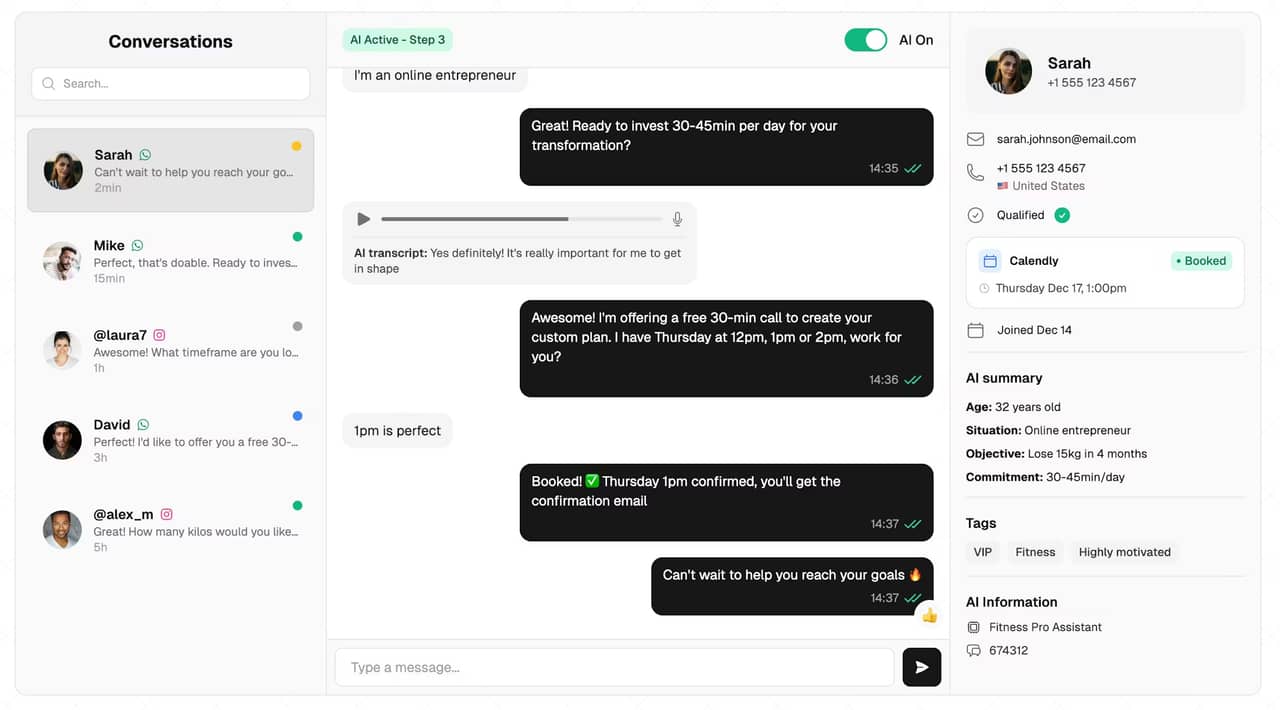
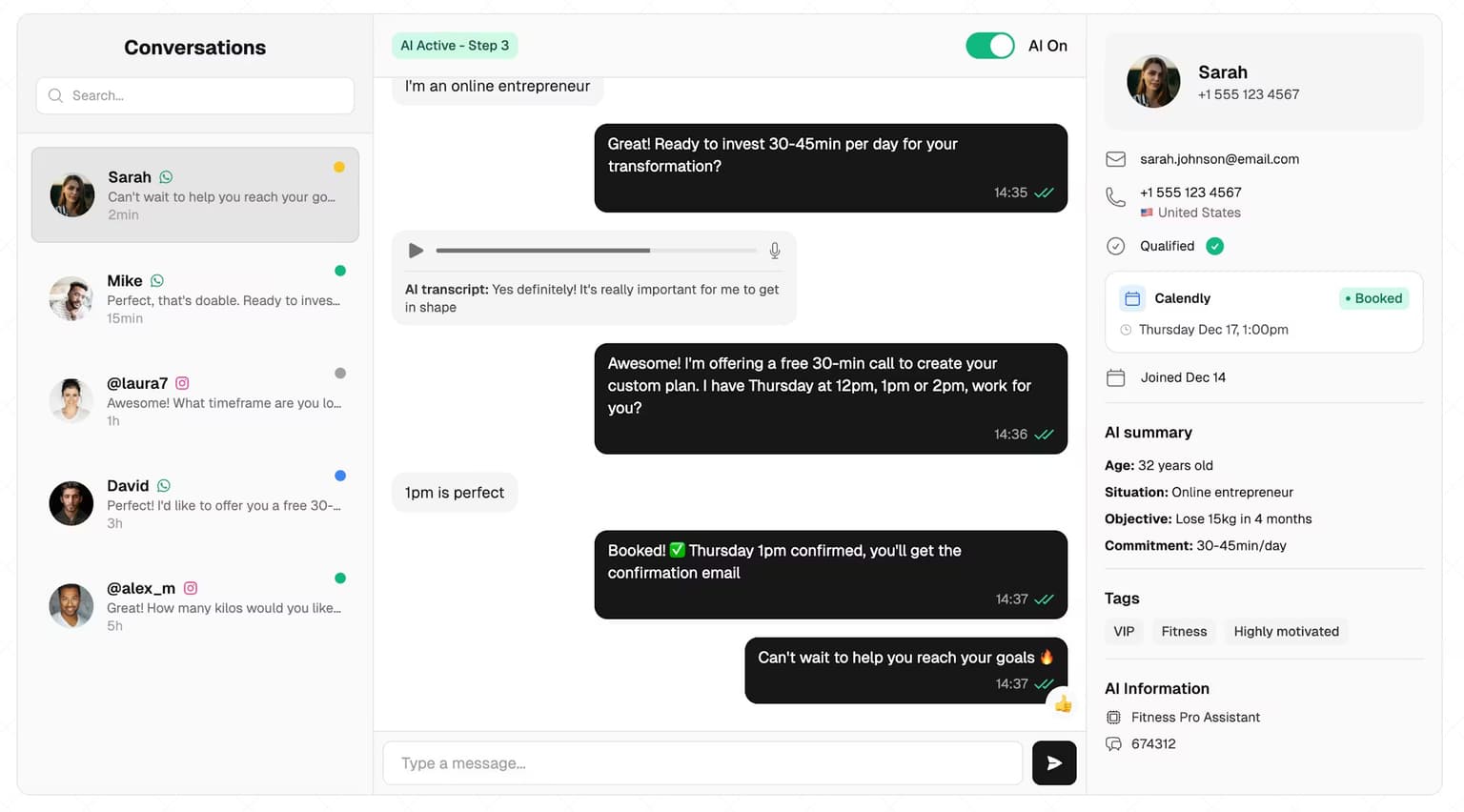
The natural next step after saved replies is not a bigger library. It is a system that reads each message and writes the right reply itself, in your voice, while respecting Meta's 24-hour messaging window. That is what an AI DM setter does.
Here is how SetSmart picks up where quick replies stop:
| Job | Saved replies | SetSmart AI setter |
|---|---|---|
| First response | When you open the app | In seconds, 24/7 |
| Qualifying questions | You pick the right one | Asked in natural conversation, based on your criteria |
| Context | In your head | Reads the whole thread before every reply |
| Follow-ups | If you remember | Automatic smart follow-ups at 4h and 23h |
| Booking | You paste the link | Proposes slots in the chat (Calendly and GoHighLevel) |
| Lead tracking | None | Built-in Instagram CRM with team access |
The saved replies you wrote are not wasted either. Your best qualifying questions and booking lines are exactly the material you give an AI setter so it sounds like you. Think of your saved-reply library as the first draft of your setter's playbook.
To be precise about the role: SetSmart qualifies the lead and books the sales call by message. It does not close the sale in the DM. The close happens on the call, run by you or your closer, which is why the goal is a calendar full of qualified sales appointments, not a longer inbox. Every conversation and its status stays visible in the Instagram CRM, so you walk into each call knowing what the lead already told the AI.
Mathis Ladoué, an online fitness coach with 22.4K followers, describes the result after moving his inbox to SetSmart:
"I book 15 to 25 calls per week... without managing a single setter." Mathis Ladoué, Online Fitness Coach, 22.4K followers
If you want the full picture of how the pieces fit together, start with the AI setter pillar, which walks through the whole setup from first DM to booked call. SetSmart is an Official Meta Business Partner and uses the official Instagram API, so there is no password sharing and no risk of the scraping tools that get accounts restricted.
A Simple Setup Plan for This Week
If you are starting from zero, do this in order:
- Switch to a professional account if you have not already.
- Turn on an instant reply and an away message so nobody waits in silence.
- Create five saved replies first:
/hey,/goal,/call,/book,/bump. Use them for a week before adding more. - Add up to four FAQs that split new chats by intent.
- Track what happens. Count how many DMs you get per day, how many get a reply within an hour, and how many turn into booked calls.
- Decide on automation once you see the numbers. If replies are slow at night, follow-ups are being forgotten, or a single campaign floods the inbox, that is the signal to add an AI setter on top.
The same playbook works on WhatsApp, where the WhatsApp Business app has its own quick replies triggered by a / shortcut.
FAQ
How do I enable quick replies on Instagram?
Switch to a Business or Creator account, then go to your profile, tap the menu, open Settings and privacy, and tap Business tools and controls (or Creator tools and controls). Choose Saved replies, tap the plus icon, add a shortcut and a message, and save. On older app versions the path is Settings, Business, Quick replies.
Why can't I find Saved replies on Instagram?
The most common reason is a personal account, since Saved replies only exist on professional accounts. Otherwise, update the app, look under tools and controls rather than message settings, or type "saved replies" into the Settings search bar. Features also roll out unevenly across regions and account types.
How do I use a saved reply in an Instagram DM?
Open the conversation and type / to see all your saved replies, or type the shortcut word you created. Tap the reply to fill the message box, edit anything personal like the person's name, and send. Nothing is sent until you press send.
How do I edit saved replies on Instagram?
Go to Settings and privacy, then Business or Creator tools and controls, then Saved replies. Tap the reply you want to change, edit the shortcut or message, and tap Save. To remove a reply, open it and delete it.
Are instant replies public on Instagram?
No. Instant replies are sent as a private DM to the person who messaged you, so only they can see it. They do not appear on your profile, your posts, or your Stories.
Can Instagram send quick replies automatically?
Saved replies are always sent manually. For automatic messages, Instagram offers instant replies, away messages, and FAQs, which send the same fixed text to everyone. To answer each message individually, qualify leads, and follow up automatically, you need an official API tool such as an AI setter.
Ready to automate your DMs?
Start your free 7-day trial and let AI handle your lead qualification 24/7.
Try SetSmart free