How to See Message Requests on Instagram (2026 Fix)

To see message requests on Instagram, open your messages (the paper plane or chat bubble icon), then tap Requests at the top of your chat list. Every DM from someone you do not follow waits there until you accept it. Inside Requests, a second folder holds hidden requests that Instagram filtered as possible spam or that match your Hidden Words, and that folder never sends a notification.
On desktop it works the same way: go to instagram.com, click Messages on the left, then Requests.
That covers the "where". The rest of this page covers the parts most guides skip: why a message lands in Requests in the first place, what to do when the folder looks empty, what the sender sees when you open, accept, or delete, how to turn requests off, and why, for a coach or creator selling through DMs, the Requests folder is often the place where your warmest leads sit unanswered.
How to See Message Requests on Instagram (iPhone and Android)
The steps to see message requests on Instagram are identical on iPhone and Android:
- Open Instagram and go to your home feed.
- Tap the Messages icon. On most app versions it is the paper plane or chat bubble in the top right corner. Some newer layouts put Messages in the bottom navigation bar instead.
- Tap Requests. It sits at the top of your chat list, usually with a number showing how many requests are waiting.
- Tap any request to read it. You can preview the full message without the sender being told you have seen it.
- Choose what to do: Accept, Delete, or Block, using the options at the bottom of the conversation.
If you do not see the word "Requests" at all, you have no pending requests, or your Message controls are set so that requests are not received. Both cases are covered in the troubleshooting section below.
How to check message requests on a business or creator account
On a professional account (the setup behind Instagram Business Chat, where people messaging you see a "Business chat" label), your inbox is split into three tabs: Primary, General, and Requests. Instagram's own description of the professional inbox is clear: the Requests folder "is for messages you haven't accepted", and it also contains the hidden requests filtered for spam or by your Hidden Words. Tap Requests to open it.
Professional accounts get one extra control here. If you tap All requests, you can switch to Top requests, which sorts requests so the most relevant accounts appear first. When you get dozens of requests a day after a Reel takes off, that view saves real time.
How to See Message Requests on Instagram on Desktop
To see Instagram message requests on a computer:
- Go to instagram.com and log in.
- Click Messages in the left sidebar.
- Click Requests at the top of the conversation list.
- Click a request to read it, then choose Accept or Delete.
Desktop has one bulk option worth knowing: a Delete all button at the bottom of the Requests list clears every request at once. Use it carefully if you sell through DMs, because one tap can wipe out a week of inbound leads.
One limitation: the hidden requests view is built for the mobile app. If a message seems missing on desktop, check the app on your phone before assuming it is gone.
How to See Hidden Message Requests on Instagram
Hidden message requests are requests Instagram moved out of your main Requests list because they may be offensive, unwanted, or spam, or because they contain words from your Hidden Words list. To see hidden message requests on Instagram:
- Open your messages and tap Requests.
- Scroll to the bottom of the list, or look at the top of the Requests screen, for the Hidden requests folder. On some app versions this folder is now labelled Spam.
- Tap it to review the filtered messages, then accept, delete, or block like any other request.
Two details matter here. First, hidden requests do not trigger notifications, so a genuine message can sit there for weeks without you knowing. Second, the filter is only as smart as your Hidden Words list. If you added words like "price", "link", or "cost" during a spam wave, Instagram will happily hide every real buyer who uses them.
If you run a business account, review this folder at least once a week. It takes less than a minute, and it is where the most surprising "I messaged you and you never answered" complaints come from.
Why Messages Go to Requests on Instagram
Instagram decides where a DM lands the moment it arrives, based on your relationship with the sender. The rule is simple: if you follow the person, the message goes to your inbox; if you do not, it becomes a message request.
| Who messages you | Where it lands | Notification? |
|---|---|---|
| Someone you follow | Your chats (Primary on a professional account) | Yes |
| Someone you do not follow, first message | Requests | Easy to miss |
| Someone whose request you already accepted | Your chats | Yes |
| Message flagged as spam or matching Hidden Words | Hidden requests (Spam) | No |
| Account you restricted | Requests | No |
| Account you blocked | Not delivered | No |
A few practical consequences follow from that table:
- Story replies from non-followers are requests too. Someone replying to your Story is just sending a DM, so the same routing rule applies.
- Accepting is permanent for that person. Once you accept or reply to a request, Instagram sends that person's future messages straight to your inbox.
- Group chats follow a similar rule. In Message controls you choose who can add you to groups; group invitations from accounts you have not connected with go to Requests.
- Restrict is quieter than block. When you restrict someone, their DMs move to Requests and they cannot see when you are active or whether you have read their message. Blocking stops their messages entirely.
If you want a broader tour of the inbox itself (tabs, features, and limits), our guide to Instagram Direct explains how the whole messaging system fits together.
Why Can't I See My Message Requests on Instagram?
If you cannot see your message requests on Instagram, the message has almost always been routed somewhere else rather than lost. Work through these checks in order:
- Look inside hidden requests. Open Requests and check the hidden requests (Spam) folder. This is the most common answer to "message requests on Instagram but nothing there": the badge counts a request that the filter moved out of the main list.
- Check Message controls. Go to Settings, then Messages and story replies, then Message controls. If requests from people on Instagram are set so you do not receive them, nothing will ever reach your Requests folder.
- Search the username. Use the search bar in your messages to type the sender's exact handle. An accepted thread that has scrolled far down your list can look missing.
- Check your Restricted and Blocked lists. A restricted account's messages sit in Requests with no alert. A blocked account's messages are never delivered at all.
- Review Hidden Words. Under Settings, open Hidden Words and look at your custom list. A word you added months ago may be filtering legitimate enquiries.
- Update or restart the app. "Instagram message requests not loading" is usually an outdated build or a cached session. Update Instagram, log out and back in, and try again on mobile.
- The sender may have unsent it. If someone unsends a message or deactivates their account, the request can disappear from your list even though you saw a notification.
When you find the message, note which folder it was in before you accept it. That tells you which setting caused the problem, so you only change the one control that matters.
How to Accept, Delete, or Block a Message Request
To manage an Instagram message request, open it from the Requests folder and pick one of three options at the bottom of the conversation:
- Accept: the conversation moves into your chats, and the sender's future messages arrive there directly.
- Delete: the request is removed from your Requests folder.
- Block: the person can no longer message you or send you new requests from that account.
What the sender sees
This is the part people worry about most. Instagram is explicit that request messages are not marked as "seen" until you accept them. So you can open and read a request, decide it is not for you, and delete it, and the sender will not see a read receipt.
Accepting changes that. Once you accept, normal read status applies, and the person can see when you have read their messages. If you are a business replying to leads, that is fine and expected. If you are a regular user unsure about a stranger, read first, decide later.
Replying also counts as accepting. On a professional account, replying to a request moves it into your main inbox exactly as tapping Accept would.
How to cancel a message request you sent
If you sent a DM to someone who does not follow you, it sits in their Requests until they act on it. To cancel it, open the conversation in your own inbox, press and hold your message, and tap Unsend. The message disappears for both of you. There is no separate "cancel request" button, and unsending does not tell you whether they had already read it. If the person never accepted, unsending removes the message from their Requests as well.
How to Turn Off Message Requests on Instagram
To turn off message requests on Instagram:
- Go to your profile and tap the menu (three lines).
- Open Settings.
- Under How others can interact with you, tap Messages and story replies.
- Tap Message controls.
- For each group of people (for example, followers, other people on Instagram), choose whether their messages go to your Message requests folder or whether you don't receive requests at all.
What happens if you turn off message requests on Instagram
If you turn off message requests on Instagram, people in the groups you switched off can no longer start a new conversation with you. Their messages are not hidden in a folder; they simply are not delivered as requests, and the sender may see that your account cannot receive their message.
For a personal account, that can be a sensible privacy choice. For a business, it is almost always a mistake, because the people who do not follow you yet are exactly the people discovering you through Reels, ads, and shares. One nuance from Instagram's help center: changing your message request setting does not affect messages that come through your Messaging Ads or monetized content, so ad-driven conversations still reach you.
How to allow message requests from everyone on Instagram
To allow message requests from everyone, open the same Message controls screen and set each group (including "Others on Instagram") to deliver to your Message requests folder. This is the right setting for coaches, creators, and anyone who sells through DMs.
Do Instagram Message Requests Expire?
In the Instagram app, message requests do not have a published expiry date: a request stays in your folder until you accept, delete, or block it, or until the sender unsends it or deactivates their account.
There is one deadline that matters if you use a DM tool, though. Meta's developer documentation for the Instagram messaging API states that messages in the Requests folder that have not been active for 30 days are no longer returned in API calls. In practice, a request can still be visible on your phone while every connected tool has lost sight of it. The second deadline is the messaging window: a business can only reply through the API within the standard window after the person's last message, which is 24 hours for most actions (and up to 7 days when the first message comes from a Click-to-Direct ad).
The takeaway is the same either way. A message request is a lead with a clock on it. The longer it waits, the colder it gets.
Why Message Requests Are Where Coaches Lose Leads
For a regular user, Requests is a privacy filter. For a coach, creator, or agency selling through Instagram, it is often the most valuable folder in the inbox, because most new demand comes from people who do not follow you yet.
Look at how a typical online coach gets new conversations:
- Comment-to-DM campaigns. Someone comments "PLAN" under your Reel, your comment-to-DM automation sends them the guide, and they reply with a question. Many of those commenters do not follow you, so their reply opens a brand new conversation in Requests.
- Story replies. A non-follower replying to your Story lands in Requests too, with the same quiet treatment.
- Ads and shares. A Reel shared into someone's group chat, or an ad that sends people to your DMs, brings in people who have never followed you.
- Profile visits. Someone finds you through search, reads your bio, and taps Message straight away.
Every one of those is a warm, inbound lead who took action. And every one of them can sit in a folder you open twice a week.
Speed is what makes this expensive. The lead response time statistics show the gap clearly: AI responds in under 5 seconds, against an industry average of 42 hours. A lead who messages at 9pm from your Reel and hears back two days later has usually moved on. And depth matters as much as speed: in our analysis of 828K AI DM conversations, 53% of conversations die before message 3. A request that waits in the folder often never gets past message 1.
The fix starts with two native settings. Make sure Message controls deliver requests from everyone, and turn on an Instagram welcome message and FAQs so that people opening a conversation cold get a useful first touch. Those tools help, but they do not answer the actual question the lead asked.
What DM Automation Can and Cannot Do With Message Requests
This is where most guides go vague, so here are the rules straight from Meta's documentation for the official Instagram messaging API, which is what legitimate tools use.
What automation can do:
- See requests instantly. When anyone messages your professional account, Meta sends a webhook to your connected tool, whichever folder the conversation lands in. A tool running on the official API sees a new request the second it arrives.
- Reply to requests. The tool can answer the person inside the messaging window, just like you can from the app.
- Move the conversation out of Requests. Meta's docs state that once your app responds to a message, the conversation moves to the General folder, regardless of your inbox settings. In other words, the reply itself promotes the thread out of Requests.
- Answer people who came from comments and Stories. Because the lead started the conversation (by commenting, replying, or messaging), the tool is allowed to respond.
What automation cannot do:
- It cannot start conversations. Under the official API, a business can only message someone after that person has messaged the business. There is no legal way to send cold DMs that land in strangers' Requests, and tools that claim otherwise are using unofficial methods that put your account at risk.
- It cannot read folder labels. Meta does not include folder information in the messages it sends to apps, so a tool cannot tell you whether a message sits in Primary, General, or Requests.
- It does not mark messages as read. Receiving a message through the API does not mark it as read in your Instagram app. It only counts as read once a reply is sent, which is why your app may still show unread badges for conversations your tool already saw.
- It cannot reach stale requests. As covered above, requests with no activity for 30 days drop out of the API entirely.
The practical conclusion: the best way to stop losing leads in Requests is not to open the folder more often. It is to make sure every request gets a real reply within seconds, which automatically moves it out of Requests and into a conversation. That is what Instagram DM automation is for, and it is why an Instagram auto reply set up through the official API beats a manual "check requests on Sunday" habit.
Static auto-replies vs an AI setter for requests
There are two ways to answer requests automatically:
| Approach | What the lead gets | Good for | Falls short |
|---|---|---|---|
| Native instant reply or welcome message | One fixed message for everyone | Acknowledging the DM | Does not answer the question or follow up |
| Keyword or button flows | Scripted replies triggered by words or taps | Delivering a lead magnet | Breaks when the lead types something unexpected |
| AI setter on the official API | A real conversation that qualifies and offers a call | Turning requests into booked sales calls | Needs your offer and qualifying criteria set up once |
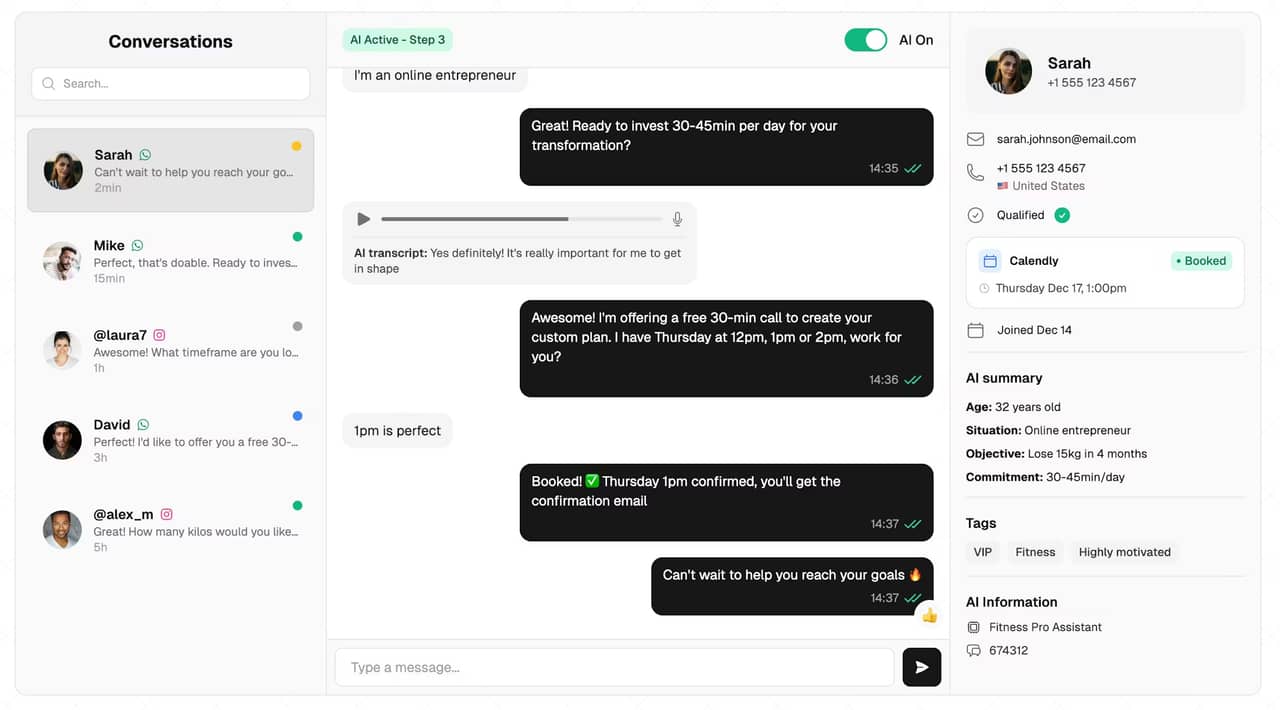
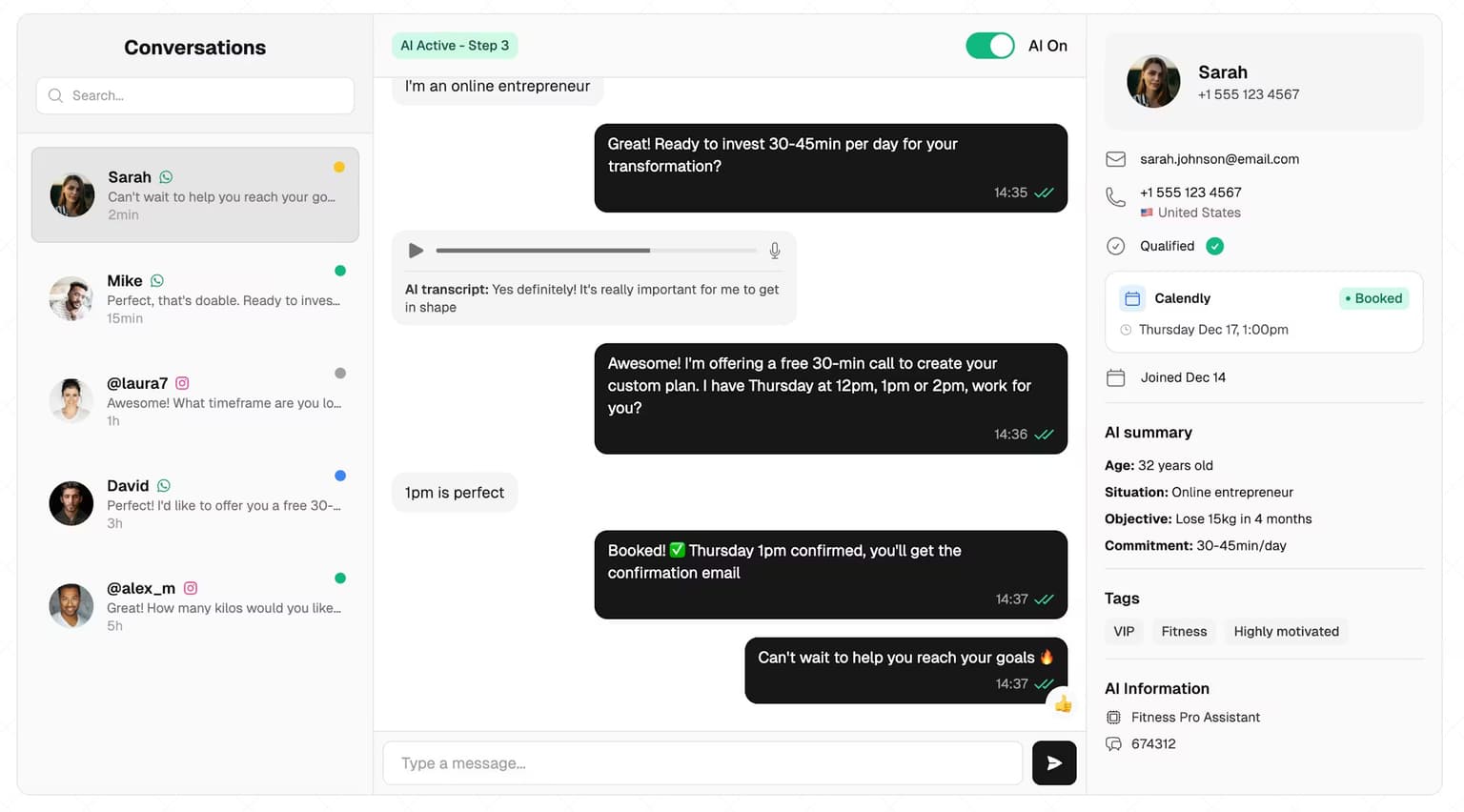
An AI DM setter reads each message, asks the questions you would ask, follows up when the lead goes quiet, and books qualified people onto your calendar. SetSmart works this way: it is an Official Meta Business Partner running on the official Instagram API, it replies to every new conversation in seconds (including the ones that start in Requests), and it books calls into Calendly, Cal.com, iClosed, or GoHighLevel.
To be precise about its role: SetSmart qualifies the lead and books the sales call by message. It does not close the sale in the DM. The close happens on the call, run by you or your closer. The goal is a calendar full of qualified sales calls, not a longer inbox. Every conversation stays visible in the built-in Instagram CRM, so you know what the lead already said before you get on the call.
Mathis Ladoué, an online fitness coach with 22.4K followers, describes the outcome after moving his inbox to SetSmart:
"I book 15 to 25 calls per week... without managing a single setter." Mathis Ladoué, Online Fitness Coach, 22.4K followers
If you want the full system from first DM to booked call, the AI setter pillar walks through it end to end.
A Simple Message Requests Routine for Coaches
Whether you automate or not, a short routine keeps requests from turning into lost revenue.
Daily, while a campaign or Reel is live:
- Open Requests and clear it, treating it as your lead queue, not your junk drawer.
- Open hidden requests underneath and rescue anything real.
- Reply rather than just accept: a reply moves the thread out of Requests and starts the conversation.
- Use saved replies for your opening question so the first response takes seconds, not minutes.
Weekly:
- Check Message controls still deliver requests from everyone.
- Read your Hidden Words custom list against the words your buyers actually use ("price", "program", "link").
- Scan your Restricted list for accounts you restricted by accident.
- Count how many requests turned into conversations and how many turned into booked calls. If the gap is large, the problem is response speed or follow-up, not the folder.
When you connect a DM tool:
- Send yourself a test message from an account that does not follow you, and confirm the tool picks it up and replies.
- Check the conversation moved to General in the app after the reply.
- Remember that conversations quiet for 30 days fall out of API reach, so do not rely on a tool to rescue very old requests.
Want ready-made openers for those first replies? Our Instagram DM scripts are written for exactly this DM-to-call flow.
FAQ
Why can't I see message requests on Instagram?
The message has usually been routed, not lost. Check the hidden requests (Spam) folder inside Requests, then confirm Message controls allow requests from people on Instagram. If you still cannot find it, search the sender's username, check your Restricted and Blocked lists, review your Hidden Words, and update the app.
How do I see hidden message requests on Instagram?
Open your messages, tap Requests, then open the hidden requests folder (labelled Spam on some app versions) at the bottom or top of the Requests screen. It holds messages Instagram filtered as possible spam or that match your Hidden Words. It sends no notifications, so check it on the mobile app regularly.
Does the sender know if I open or delete their message request?
No. Instagram does not mark request messages as seen until you accept them, so you can read a request and delete it without the sender getting a read receipt. Once you accept or reply, normal read status applies and they can see when you have read their messages.
What happens if I turn off message requests on Instagram?
People in the groups you switched off can no longer send you new message requests, so their first message is not delivered rather than hidden. Messages that come through your Messaging Ads are not affected. For a business that sells through DMs, turning requests off cuts off new leads from people who do not follow you yet.
Do message requests on Instagram expire?
Not in the app: a request stays until you accept, delete, or block it, or the sender unsends it. For connected tools, Meta's API stops returning Requests conversations that have had no activity for 30 days, and replies must be sent within the messaging window (24 hours for most actions).
Can a business auto-reply to Instagram message requests?
Yes, through the official Instagram API. Connected tools receive every new message regardless of folder, can reply within the messaging window, and that reply moves the conversation from Requests to General. What a business cannot do is send cold DMs to people who never messaged it first.
Ready to automate your DMs?
Start your free 7-day trial and let AI handle your lead qualification 24/7.
Try SetSmart free