Instagram Messages Not Loading? 10 Fixes (2026)

When your Instagram messages are not loading, the cause is almost always one of five things: an Instagram outage, a broken session in the app, a problem fetching old messages, a folder or setting that hides the chat, or a limit on your account. Each one has a different fix, and the classic advice ("just reinstall the app") only solves one of them.
So before you touch a single setting, run one quick test. Do DM notifications still reach your phone? And does the same inbox load when you open instagram.com in a browser? Those two answers tell you, in about 30 seconds, whether the fault is on Instagram's side, on your phone, or on your account. Most people skip that step and lose an hour reinstalling an app that was never the problem.
This guide gives you the diagnosis table, the 10 fixes in the right order, what to do when only old messages fail, when messages are not showing or not sending, what Instagram really says about DM limits, and what changes when your Instagram Direct inbox is a business inbox connected to automation tools. Everything below was checked against Instagram's Help Center and Meta's own statements in November 2026.
Why are my Instagram messages not loading? The 30-second diagnosis
Short answer: Instagram messages stop loading because of a server outage, a stale app session, a failed history download, a hidden folder, or a messaging restriction. Match what you see to the table below, then jump to the fix for that row.
| What you see | Most likely cause | What to do |
|---|---|---|
| Blank inbox or endless spinner, on the app AND on instagram.com | Instagram outage | Check outage reports, wait. Reinstalling will not help. |
| Inbox fails in the app but loads fine in a browser | App or phone problem | Force-close, update, clear cache, reinstall (fixes 2 to 9) |
| Recent messages fine, "Failed to load earlier messages" when you scroll up | History download timing out | Open the chat from the person's profile, use the web, scroll in short pulls |
| Notification or badge, but the chat is not there | Requests, Spam or General folder, or a stuck badge | Check every folder, then switch accounts |
| Inbox works, but your messages fail with a red exclamation mark | Messaging limit, block, or the recipient's settings | Stop sending, check Account Status, test another chat |
The browser test is the most useful single check. Instagram's web inbox fetches your conversations independently from the app. If the web version works, your account and Instagram's servers are fine, and the problem lives on your phone. If the web version fails too, no phone setting will fix it.
Is Instagram down? Check for an outage first
If your DMs fail on the app and on the web at the same time, assume an outage until proven otherwise. Look at outage trackers such as Downdetector, search "Instagram down" on X or Threads, and ask a friend whether their inbox opens.
This is not a hypothetical. On 11 March 2026, a large Instagram DM outage left users worldwide with a blank messages page and the error "Failed to load earlier messages". Meta later confirmed that some people could not use Instagram DMs and some Messenger features, and said it had restored service within hours. During that outage, people reported that chat themes reset to default, search inside Messages stopped responding, and some messages sent during the incident never reached the other person. Several users reinstalled the app, and some said things got worse.
Two lessons from that day:
- Reinstalling does not fix a server problem. It just forces your phone to download the same broken data again.
- Messages sent during an outage may not arrive. Once service is back, check your important chats and resend anything that shows a failed state.
If outage reports are climbing, the right fix is to wait and try again later.
10 fixes when Instagram messages are not loading
If the outage check comes back clean, work through these fixes in order. They go from the cheapest (ten seconds) to the most disruptive. Instagram's own troubleshooting page recommends the same core sequence: latest app and operating system, restart, test the connection, reinstall.
1. Switch between Wi-Fi and mobile data
Instagram's Help Center tells you to try the app on both Wi-Fi and mobile data to see if a weak connection is the culprit. A congested Wi-Fi network, a captive portal (hotel or airport Wi-Fi that needs a login), or a VPN can stop Messages from loading while the feed still shows cached posts. Switch networks, then reopen Messages. If you use a VPN, turn it off for one test.
2. Force-close the app and reopen it
Minimizing the app is not enough. On iPhone, swipe up from the bottom of the screen, pause, then swipe the Instagram preview away. On Android, go to Settings, Apps, Instagram, then tap Force stop. Reopening the app rebuilds the connection to Instagram's servers, which clears most "inbox stuck on a spinner" cases.
3. Update Instagram and your phone's operating system
Instagram's Help Center opens its troubleshooting steps with a reminder: always run the latest version of the app and of your phone's operating system. Messaging features change often, and an old build can break after a server-side change. Check the App Store or Google Play for an Instagram update, and your phone settings for a system update.
4. Restart your phone
It sounds basic, and it is the first step Instagram itself lists. A restart clears memory pressure, stuck background processes and network glitches that a force-close does not touch.
5. Check data saving settings
If chats open but photos, videos and voice notes inside them never load, a data saving setting may be holding them back. Inside Instagram, look under your profile Menu for the data usage and media quality settings and turn off any data saver option. On your phone, make sure Instagram is allowed to use mobile data and is not restricted by a system-wide data saver or low data mode.
6. Clear Instagram's cache (Android) or offload it (iPhone)
A corrupted local cache can make the app show an old, broken version of your inbox.
- Android: Settings, Apps, Instagram, Storage (or Storage and cache), then Clear cache. Do not tap Clear storage unless you are ready to log in again.
- iPhone: there is no cache button. Go to Settings, General, iPhone Storage, Instagram, then Offload App, and reinstall it from the same screen. Offloading keeps your settings while replacing the app itself.
7. Log out and back in
A session that has been signed in for months can go stale. Log out of the account that has the problem, close the app, open it again and log back in. If you manage several accounts, log out of each one: a broken session on one profile can slow down the switcher for all of them.
8. Use instagram.com as a backup inbox
Even when you cannot fix the app right away, the web version usually lets you keep working. Go to instagram.com in a desktop or mobile browser, sign in and open Messages. If you rely on DMs for your business, this is your emergency inbox while you sort the app out.
9. Delete and reinstall the app
This is the last step in Instagram's own troubleshooting list. On iPhone, touch and hold the Instagram icon, tap Remove App, then Delete App, and reinstall it from the App Store. On Android, uninstall from Settings, Apps, Instagram, then reinstall from Google Play. Instagram's Help Center confirms that your photos and profile information are saved by Instagram, and your conversations live on Instagram's servers too, so reinstalling does not delete your DMs.
10. Report the problem to Instagram
If nothing above works, tell Instagram. In the app, shake your phone to open the reporting menu and tap Report a problem. Or go to your profile, tap Menu, then under More info and support tap Help, then Report a Problem. Instagram asks for as much detail as possible: your phone model, what you were doing, and a screenshot of the error.
Old Instagram messages not loading? Try these instead
The phone does not store your entire DM history. When you scroll up in a long conversation, the app fetches older messages page by page from Instagram's servers. On a thread that spans years, or one full of photos and videos, that request can time out, and the app shows a spinner or "Failed to load earlier messages". Nothing has been deleted. The page just never arrived.
What works:
- Open the chat from the person's profile. Search their username, open their profile and tap Message. The app treats this as a fresh request for the conversation, and older history often loads where the inbox route kept failing.
- Scroll in short pulls on a good connection. Give each scroll a second to complete, preferably on Wi-Fi.
- Search instead of scrolling. Use the search inside the conversation to jump to a keyword rather than scrolling back months.
- Use the web. instagram.com loads history separately from the app and often shows what the app will not.
- Download your information. If you need the full record, request a copy of your messages from Accounts Center under Your information and permissions, then Export your information. Our guide to recovering deleted Instagram messages walks through the export step by step.
One real cause of missing old messages is not a bug. End-to-end encrypted messaging on Instagram is no longer supported as of 8 May 2026, according to Instagram's Help Center. If an old chat was an encrypted one, Instagram points affected users to a dedicated download of their encrypted data, which is only available on a computer (Menu, Your activity, then Download end-to-end encrypted data). Regular, non-encrypted DMs were not part of that change.
What does not work: reinstalling. A fresh install has to fetch the same long history over the same connection, and it tends to fail at the same place.
Instagram messages not showing: notification but no message
If you get a DM notification or a red badge but the conversation is nowhere to be found, the message is usually sitting in a folder you are not looking at.
- Requests. Messages from people you do not follow can land in Message requests, depending on your settings. Open Messages and tap Requests. Our guide on Instagram message requests explains where requests go and why some never notify you.
- Spam (formerly Hidden requests). Requests that look offensive, spammy or match your Hidden Words go to a separate folder inside Requests. Instagram does not send notifications for that folder, so check it manually.
- General. Professional accounts have Primary and General tabs. A chat in General does not appear in Primary, and conversations answered by a connected business tool can move there.
- Another account. If two accounts are logged in on the same phone, the notification may belong to the other profile. Check the account switcher for a badge.
- Unsent. If the sender unsent the message after the notification went out, the badge can stay while the message is gone.
There is also a known glitch where the badge itself is wrong. In mid-March 2026, many users reported a pending message request count with an empty Requests list. Acting on anything in Requests and Spam, force-closing and updating cleared it for some people; others only got rid of it by reinstalling.
If you suspect the person is not in any folder because they changed their own privacy settings, our explainer on turning off read receipts on Instagram covers what Restrict and the read receipts toggle do to a conversation, which can make a chat look broken when it is not.
Instagram messages not sending or "failed to send"
The key question is: does it fail with everyone, or with one person?
It fails with everyone
If every message shows a red exclamation mark or "Failed to send", the cause is on your side:
- Connection or outage. Go back to the outage check and fix 1.
- A messaging limit. If Instagram warned you about sending too many messages and you kept going, you may not be able to send DMs for a period of time (see the next section).
- Inauthentic activity. Instagram's Help Center says you may see "Try again later" when it detects inauthentic activity on your account, which can mean someone else has your password. Change your password, remove third-party apps you do not trust, and turn on two-factor authentication.
It fails with one person
If your messages go through to everyone else, the other person's account or settings are usually the reason. Instagram documents several:
- They blocked you. Messages you send while blocked are never delivered, even if they later unblock you.
- They restricted you. Your messages still go out but move to their Message requests, and you cannot see when they are online or whether they read you.
- Their message controls. People can choose whether requests from non-followers go to Requests or are not received at all.
- They have a Teen Account. Teen Accounts are set by default to only receive messages from accounts they follow or have already connected with.
- It is an old chat with a Facebook account. Existing Instagram chats with Facebook accounts became read-only in December 2023.
Photos, links and forwards fail but text works
When you message someone who does not follow you, the conversation starts as a request and can only contain text: photos, videos and voice notes are blocked until they accept. You can also only forward a message to up to 5 chats at a time. And a link pasted into many identical messages is one of the patterns most likely to trigger a temporary restriction, so send text first and links once the person replies.
Instagram DM limit: what Meta actually documents
There is a lot of folklore about "safe" daily DM numbers. Instagram's Help Center is short and clear on this: Instagram has limits in place to stop direct messages people may not want, like spam, and if you were warned about sending too many messages and continue, you may not be able to send more DMs for a period of time. It does not publish a daily number, and it does not say how long the pause lasts. Any article that gives you an exact daily figure is guessing.
What you can actually check is Account Status. Go to your profile, tap Menu and find Account Status (under More info and support on most versions). Under Features you can't use, Instagram lists restrictions on your account and, when available, a way to request a review. If messaging appears there, stop sending, including from any tool connected to the account, and wait it out. Pushing through with another app or a second account tends to make it worse.
For businesses that reply through the official Instagram Messaging API, Meta publishes technical limits instead of a daily cap:
| Rule | What Meta documents |
|---|---|
| Who a business can message | Only people who messaged the account first |
| Reply window | 24 hours after the person's last message (a human agent tag allows up to 7 days) |
| DM after a comment | One private reply per comment, within 7 days of it |
| Comment-to-DM volume | 750 private replies per hour per account |
| Message length | 1,000 bytes of text |
Our Instagram Messaging API explainer covers each rule in detail, including the send rates per second and what happens past the 24-hour window. The practical takeaway: an account answering hundreds of people who each wrote first breaks no documented limit. What gets accounts restricted is behaviour, such as unsolicited messages, identical copies, and lots of people blocking or reporting you.
When your business inbox glitches: what happens to leads
For a coach, creator or small business, a broken inbox is not an inconvenience. It is lost revenue. A lead who asks "how much is your program?" and gets no reply for a day has usually moved on. A few business-specific points:
The app and the API can fail separately
If you answer DMs through an approved tool connected to the official API, that tool receives new messages through Meta's webhooks, not through your phone. A problem in the app on your phone does not stop it. A wider Meta incident can hit the app, the API, or both, so after any outage check your tool's inbox for conversations that came in during the incident and answer the ones that were missed.
A password change can silently disconnect your tools
When Meta invalidates an account's session, for example after a password change or a security checkpoint, connected tools lose access. The inbox in your app still works, so nothing looks wrong, but your automation stops replying. After any security change, reconnect your Instagram DM automation tools and send yourself a test DM.
Two tools on one account can fight over a thread
If you connect more than one app to the same account (an old chatbot plus an inbox tool, for example), Meta lets only one app own a conversation at a time. The other one gets an error when it tries to reply. If replies fail in only some conversations, check which connected app is set as the primary receiver in your Meta inbox settings and disconnect the tools you no longer use. Our roundup of Instagram DM bots explains which tools use the official API and which ones ask for your password, something Instagram's Help Center warns against when an app promises likes or followers in exchange for your login.
Check the General folder
Conversations answered from a connected tool can move to General in the Instagram app. If you also reply by hand from your phone, look there before assuming messages disappeared. The Instagram business chat guide explains how Primary, General and Requests work for professional accounts.
What SetSmart does when Meta drops an event
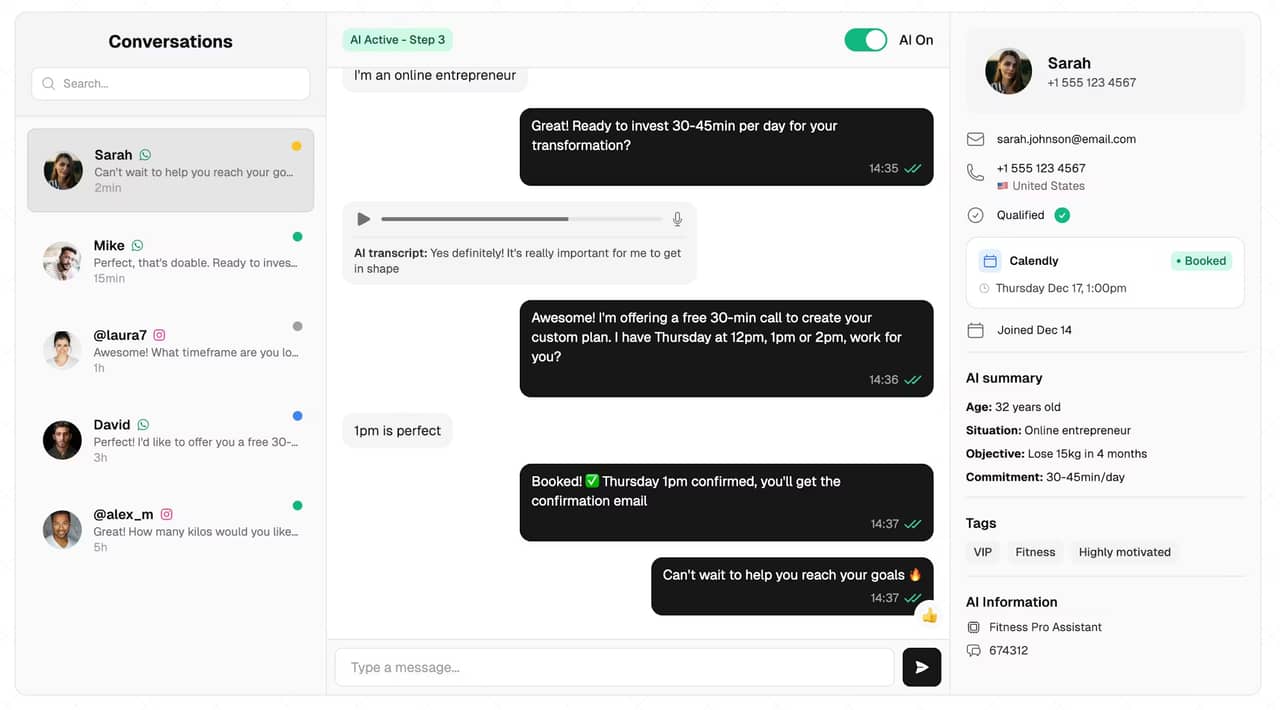
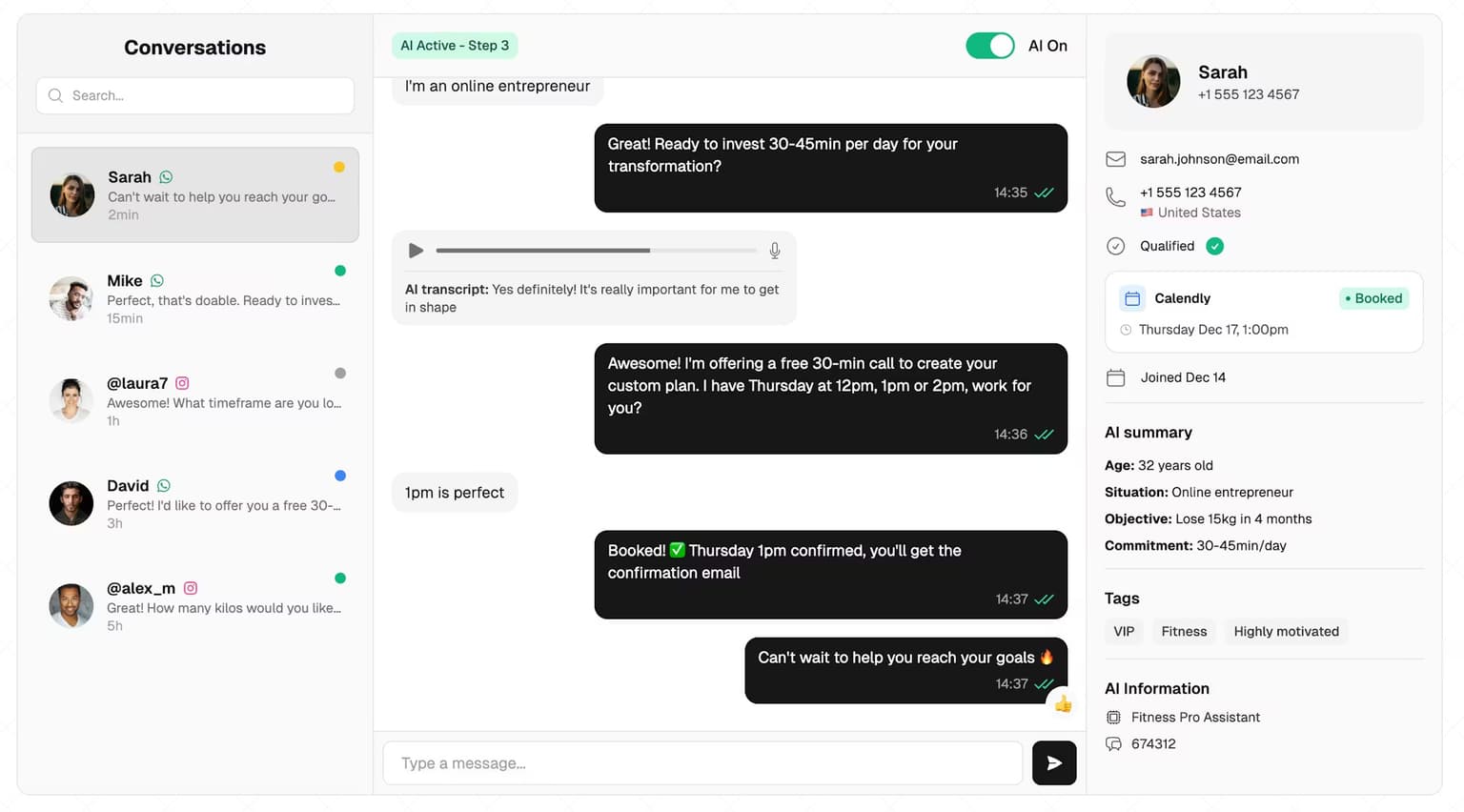
SetSmart connects through Meta's official Instagram API, and two safeguards cover the failures above. Meta occasionally stops delivering comment notifications for a single post while the rest of the account works normally, so every 15 minutes SetSmart checks recent comments on posts with a keyword trigger and replays the ones that should have sent a DM but never did, as long as the 7-day private reply window is still open. And once a day it checks that each connected Instagram account still has a valid session, and emails the owner a reconnect link if Meta has invalidated it, so a password change does not quietly switch your AI off for weeks.
Speed matters more than the glitch
Glitches are occasional. Slow replies are daily. Across 828K AI DM conversations we analyzed, 53% died before message 3, and a single follow-up doubled booked calls. Most lost leads are not rejections: they are people who wrote, waited, got distracted and never came back. A time-based AI follow-up brings many of them back, whether the delay came from a glitch or from a busy week.
That is the job of an AI setter: it replies to every new DM within seconds, asks the qualification questions you would ask, and books qualified leads straight into your calendar. The sale itself still happens on the booked call, run by you or your closer. The DM's job is to fill your calendar with qualified sales calls, not to replace them. As Mathis Ladoue, an online fitness coach, put it: "I book 15 to 25 calls per week... without managing a single setter."
FAQ
Why are my Instagram messages not loading?
The most common causes are an Instagram outage, a weak connection, an outdated or stale app session, a corrupted cache, or older history timing out on long chats. Test the same inbox on instagram.com: if it fails there too, Instagram is having problems and you should wait. If the web works, update, force-close, clear the cache or reinstall the app.
How do I fix the Instagram DM glitch?
Switch between Wi-Fi and mobile data, force-close the app, update Instagram and your phone's system, and restart the phone. If the glitch persists, clear the cache on Android or offload and reinstall on iPhone, then log back in. If it still fails, shake your phone in the app and tap Report a problem with a screenshot.
Is there an issue with Instagram messages today?
Check outage trackers such as Downdetector, search "Instagram down" on X or Threads, and ask someone else to open their inbox. If DMs fail on both the app and the web for many people at once, it is a server issue and no setting on your phone will fix it. Meta usually restores service within hours, as it did after the 11 March 2026 DM outage.
Why are my Instagram DMs not sending?
If messages fail with everyone, check your connection, update the app, and look at Account Status for a messaging restriction. If they fail with one person only, they may have blocked or restricted you, limited who can message them, or have a Teen Account. Photos and voice notes to someone who does not follow you only work once they accept your request.
Why are my messages not coming up on Instagram?
Messages that do not appear usually sit in Requests, in the Spam folder inside Requests, or in the General tab on professional accounts. A notification may also belong to another account logged in on the same phone, or the sender may have unsent the message. If every folder is empty and the badge stays, force-close and update the app.
Is there a daily DM limit on Instagram?
Instagram does not publish one. Its Help Center only says it limits messages people may not want, like spam, and that if you keep sending after a warning you may be blocked from sending DMs for a period of time. Check Account Status for restrictions. Businesses using the official API follow documented rules instead, like replying within 24 hours of the person's last message.
Most "Instagram messages not loading" problems take five minutes to fix once you know which of the five failures you have. Run the browser test first, fix the app if it is the app, wait if it is Instagram, and check your folders before you panic. And if your inbox is where your clients come from, make sure a glitch or a busy day never leaves a lead waiting.
Ready to automate your DMs?
Start your free 7-day trial and let AI handle your lead qualification 24/7.
Try SetSmart free