WhatsApp Business Account: How to Create One (2026)

To create a WhatsApp Business account, download the free WhatsApp Business app from the App Store or Google Play, tap Agree and continue, verify a phone number with the 6-digit code WhatsApp sends you, then fill in your business profile (name, category, hours, photo, website, description). It takes about ten minutes, and you can either use a brand new number or move your existing WhatsApp number across with its chat history.
That is the answer for 9 out of 10 people searching the term. The confusing part is that "WhatsApp Business account" means two different things. It is the account you create in the free app, and it is also the account Meta creates in Business Suite when you connect a number to the WhatsApp Business API so software can answer for you. Coaches and creators who sell through DMs usually need the first one today and the second one a few months later, and picking the wrong number at the start makes that second step painful.
This guide covers both: number rules, setup on iPhone and Android, converting an existing account, the naming rules most people break, Instagram linking, desktop use, cost, and the API-side account (Meta changed its structure in 2026).
What is a WhatsApp Business account?
A WhatsApp Business account is a WhatsApp profile registered as a business rather than a person. Your leads still message you from their normal WhatsApp, but on your side you get a business profile, catalog, labels, automated greeting and away messages, quick replies, and a short link. If you want the full feature comparison against personal WhatsApp, our WhatsApp vs WhatsApp Business breakdown covers it line by line.
There are two kinds, and they are created in different places:
| WhatsApp Business app account | WhatsApp Business Platform (API) account | |
|---|---|---|
| Where you create it | In the WhatsApp Business app on your phone | In Meta Business Suite, or through a provider's signup flow |
| Who sends the messages | You, by hand, from the phone or linked devices | Software: a shared inbox, a chatbot, an AI assistant |
| Cost | Free | Meta's per-message fees plus the tool you use |
| Best for | Solo coaches answering every chat themselves | Ads to WhatsApp, a team, automatic qualification and booking |
| Setup time | About ten minutes | A guided signup through a provider, plus Meta's reviews |
Start with the app. Everything below up to the API section is about the app account; the API section explains what changes when you add software on top.
Before you start: which phone number to use
The number is the only decision you cannot easily undo, so make it on purpose. According to the WhatsApp Help Center, the number you register must meet these rules:
- It must be a mobile or landline (fixed) number that you own.
- It must be able to receive an SMS or a phone call, because that is how the 6-digit registration code arrives.
- Unsupported numbers are rejected: VoIP numbers, toll-free numbers, paid premium numbers, universal access numbers (UAN), and personal numbers.
- Landline extensions do not work. Use the direct line, and tap Call me to get the code by automated voice call.
- Call blockers, call-blocking apps and task killers must be off during registration.
Then pick one of two routes.
Route 1: a new, dedicated business number. A second SIM, an eSIM, or a landline you own. Your personal WhatsApp stays untouched on your personal number, and the business account starts clean. This is the right choice for most coaches: you can print it, put it in ads, hand it to a VA, and later connect it to automation without disturbing your family chats.
Route 2: convert the number you already use. Your existing WhatsApp account, chats and media move into the Business app. Choose this only if clients already know that number and you are comfortable with it becoming a public business line.
What you cannot do is run one number in both apps at the same time. WhatsApp and WhatsApp Business are separate apps, and a number lives in one of them at a time. You can, however, have both apps on the same phone with two different numbers, which is the setup most solo coaches end up with.
How to create a WhatsApp Business account with a new number
These steps are the same on iPhone and Android, based on WhatsApp's own setup guide:
- Download WhatsApp Business from the App Store or Google Play. It is a separate app with a "B" icon, not an option inside regular WhatsApp.
- Open it and accept the terms. Review the WhatsApp Business Terms of Service (and, in some regions, the WhatsApp Business App Privacy Policy), then tap Agree and continue.
- Enter your number. Choose your country from the list so the country code fills in, then type the number without a leading 0.
- Verify it. Tap Done and enter the 6-digit code from the SMS. If nothing arrives, wait for the timer (it can take up to 10 minutes) and choose Call me. Do not guess the code: wrong attempts lock you out for a while.
- Restore or skip. WhatsApp looks for a backup tied to that number. On a fresh number there is none, so you go straight to the profile.
- Create the business profile. Enter the business name, select up to three categories, add your hours, add a profile photo, then your address and website, then a description. Address, website and description can be skipped and added later.
- Finish. Tap Continue and the account is live.
During the description step you can tap Refine with Meta AI to get suggested rewrites. Useful as a starting point, but rewrite it in your own voice: "Online nutrition coaching for busy mums who want to lose 10kg without giving up family dinners" beats any generic suggestion.
How to convert your existing WhatsApp to a business account
If you want to keep your current number and history, WhatsApp handles the migration for you. The steps from the Help Center:
- Back up your chats first. In WhatsApp, open Settings, then Chats, then Chat backup.
- Save your WhatsApp contacts to your phone's address book. Contacts created inside WhatsApp are not yet supported in the Business app and are lost in the move. In WhatsApp settings you can turn off WhatsApp contacts and choose to save them all to the phone first.
- Update WhatsApp and install WhatsApp Business on the same phone.
- Open WhatsApp Business and tap Agree and continue.
- Confirm the number. The app detects the number you use in WhatsApp; tap it to continue, or tap Use a different number to register another one instead.
- Allow access to your chat history and media by tapping Continue, then Allow.
- Enter the 6-digit SMS code, then create your business profile.
Your chats, groups and media come across. Your personal WhatsApp app stops working for that number, because the number now lives in Business.
Going back is possible, but it is lossy. You can move from WhatsApp Business back to WhatsApp Messenger, but business-only features do not travel: catalog items and collections cannot be transferred. Decide the number's role before you switch, not after a month of building a catalog.
Set up your business profile so leads trust it
The profile is what a lead sees before they type, and it is public to anyone who has your number saved, including people you have blocked (they cannot message you, but they can still see the profile and catalog). WhatsApp's help pages list the fields you can fill in, and every one of them is worth five minutes.
Business name: the rules most coaches break
WhatsApp publishes formatting rules for business names. Follow them, because a name that breaks them is not eligible for the "Official business account" status, which is what lets your name appear in a customer's chat list even when they have not saved your number. With a regular account, a lead who has not saved you sees only your phone number.
The rules say a business name must represent the business and cannot:
- Be written in all capitals (acronyms excepted), use extra spaces, unnecessary punctuation, emoji, symbols such as ®, or special characters like
@ # $ % & * /. - Consist only of a person's full name, a generic term (such as "Fitness"), a generic location, or three or fewer characters.
- Include any variation of the word "WhatsApp".
The second rule is the one that catches coaches. "Sarah Martin" on its own is a person's name. "Sarah Martin Nutrition Coaching" is a business. Pick the version you will keep, too: changing the name later can cost you the Official business account status.
The fields that actually move leads
| Field | What to put there as a coach |
|---|---|
| Category | Up to three. Custom categories are not allowed, so use the closest match or "Other Business". |
| Description | Who you help, with what, in one or two lines. Write the outcome, not the method. |
| Business hours | Choose "By appointment" if you work from booked calls; it sets the right expectation. |
| Website | Your booking page or application form, not your homepage. This is the highest-intent link on the profile. |
| Email and address | Email yes. Address only if you see clients in person. |
| Username | Optional, but it lets people find you without your number. Match your Instagram handle. |
| Profile and cover photo | Your face, not a logo. People reply to people. |
| Catalog | Your programme tiers with a short description each. Prices optional; many coaches keep pricing for the call. |
The profile also shows the month and year you joined the WhatsApp Business app, which is one more reason not to delete and recreate the account every time you change your mind.
Edit everything later from the app's business profile screen. The web and desktop versions let you edit most fields too, but the business name, phone number, services and linked accounts can only be changed in the mobile app.
Turn on the free business tools
A brand new account is a shopfront with nobody behind the counter. Before you share the number anywhere, switch on the three automated messages the app includes: a greeting message for first-time contacts, an away message for off hours, and quick replies for the questions you answer every day (price, how it works, how to book). Our walkthrough of WhatsApp Business automated messages shows each setting and gives copy you can paste.
Then grab your short link. WhatsApp generates one automatically when you create the account: tap Tools, then the three dots, then Short link. You can copy it, share it, and set a default message that pre-fills the chat, for example "Hi, I saw your post about the 12-week programme". Anyone who taps the link opens a chat with you; on a computer without WhatsApp, they land on a web page with your business details and a Continue to chat button. Put that link in your Instagram bio, your story link stickers and your email signature.
How to link your WhatsApp Business account to Instagram and Facebook
Linking the accounts adds a WhatsApp button to your Instagram profile, which turns profile visits into WhatsApp chats without a link-in-bio detour. WhatsApp's instructions:
- In the WhatsApp Business app, open the Tools tab and tap Facebook & Instagram.
- Tap Instagram, then Continue. The Instagram login page opens.
- Log in with your Instagram details, or tap Continue with Facebook.
- If your Instagram is a personal account, you are asked to switch it: tap Next, choose Business or Creator, and continue. Not sure which one fits? Our comparison of Instagram creator vs business accounts covers the trade-offs.
- Confirm your details, tap Add, then Back to WhatsApp.
Your linked Instagram professional account now appears at the top of the Facebook & Instagram screen, and the Click to WhatsApp button shows on your Instagram profile. Facebook Pages link from the same screen. Depending on your region, the last few posts from your linked Page or Instagram profile can also appear on your WhatsApp business profile.
If linking fails, WhatsApp's troubleshooting list is short: use the phone number registered on the Business app, make sure you are an admin of the Meta business account involved, and check your Instagram business category. Some categories are not supported under the WhatsApp Commerce Policy, and the error message "Your Instagram business category isn't supported on WhatsApp" means you need to change the Instagram category first.
This button is also the bridge for paid traffic. Once the accounts are linked, click-to-WhatsApp ads can send people from an Instagram or Facebook ad straight into a chat with your number.
Can you use a WhatsApp Business account on a computer?
Yes, but you create it on a phone. Registration and linking new devices both happen from the primary phone, so there is no "create a WhatsApp Business account on PC only" option. Once the account exists, you can use it on WhatsApp Web, the WhatsApp desktop app, a second phone linked as a companion device, or an Android tablet.
The free app allows up to four linked devices plus one phone at the same time. Linked devices keep working when the phone is offline, but they log out if the phone itself goes unused for more than 14 days, and any linked device idle for 30 days is disconnected automatically. A few features do not work on linked devices: broadcast lists, posting or deleting a status, and live location.
Four devices on one account is not a team: nobody has their own login. WhatsApp's paid Meta Verified and Meta One subscriptions add a multi-agent mode with up to 10 devices and chat assignment. Past that point you are in API territory, and our guide to WhatsApp Business multiple users maps every option.
Is a WhatsApp Business account free?
The app account is free: free to download, free to register, no subscription and no per-message fee. The only costs you might see are your carrier's normal SMS or call charges during verification, and optional paid extras:
- Meta Verified for Business. A paid subscription with a verified badge and extra protection, priced by region inside the app. Never pay a third party who claims to sell you a badge; our explainer on the WhatsApp green tick covers how verification really works.
- Marketing messages. The Business app now includes paid marketing messages for promotions to your contacts, priced separately.
The API account is where real costs start. Meta bills template messages by the recipient's country and the message category, and it revises the rate card regularly (including an October 2026 change to how service replies are billed). Our WhatsApp Business API pricing breakdown keeps the current numbers. On top of Meta's fees, you pay for whichever tool you connect.
The other WhatsApp Business account: the API side
When you connect WhatsApp to software, whether a shared inbox, a chatbot or an AI assistant, you are no longer using the app account alone. You are using the WhatsApp Business Platform, and Meta creates a separate set of accounts for it inside your Meta business portfolio. Our WhatsApp API guide explains the platform itself; here is what matters for the account.
Meta's 2026 account structure
Developers have long called this account a WABA (WhatsApp Business Account). In 2026 Meta reorganised it. According to Meta's developer documentation (updated August 2026), the platform now uses two account types:
- A WhatsApp account, which holds a single business phone number and represents your business presence on WhatsApp.
- A Messaging account, which holds your message templates and billing details. Each provider you work with has its own Messaging account, and your old WABA ID now identifies the Messaging account.
You need both to send and receive messages. A provider's signup flow creates both for you, which is why Meta Business Suite now lists two kinds of WhatsApp accounts under Settings > Accounts.
Three ways to create the API account
- Through a provider (the usual route). You click "Connect WhatsApp" in a tool, log in with Facebook, and complete Meta's Embedded Signup flow, which collects your business details and creates the accounts for you.
- In Meta Business Suite. Go to business.facebook.com, create or select your business portfolio, open Settings > Accounts > WhatsApp accounts, click +Add and choose Create a new WhatsApp account. Messaging accounts are created from their own panel the same way.
- Directly with Cloud API. For developers building their own integration, through the Meta app dashboard's API Setup panel.
Whichever route you take, you then connect a phone number and add a payment method in your Meta business settings. Without a payment method, template messages cannot be sent.
Limits worth knowing on day one
- Two numbers to start. Meta initially allows two registered business phone numbers per WhatsApp account group, which can be raised to 20.
- Template limits depend on verification. An unverified business portfolio gets 250 message templates per Messaging account. A verified portfolio with an approved display name gets up to 6,000.
- Verification needs a real website. Meta's business verification checks that your business exists. A working site or page that clearly presents your offer and services makes it far smoother; a bare link-in-bio page often is not enough.
- Your display name is reviewed, so the same naming discipline from the app applies here.
Using a number that is already on WhatsApp
This is where the number you picked at the start comes back to bite. Meta's documentation is explicit: to use a number that is currently on regular WhatsApp with the Cloud API, you must first delete that WhatsApp account. For a number on the WhatsApp Business app, you have two options:
- Delete the app account and re-register the number on the API. Your app messaging history is lost and the number no longer works in the Business app until you deregister it from the API. After deletion it can take up to 3 minutes for the number to become available.
- Onboard with a provider that supports Business app numbers, a mode Meta's partners call "coexistence". You keep using the WhatsApp Business app on your phone, the provider's software works on the same number, and messages stay in sync between both.
Coexistence: keep the app and add automation
Coexistence is the option most coaches with an established number want, so know the trade-offs Meta documents before you choose it:
| What changes | With coexistence |
|---|---|
| Requirements | WhatsApp Business app version 2.24.17 or later, through a provider that supports it |
| One-to-one chats | Mirrored between the app and the software; up to about six months of history can be synced |
| Group chats | Stay in the app, not synced to the software |
| Broadcast lists | Disabled; existing lists become read-only |
| Disappearing, view once, live location | Turned off for one-to-one chats |
| Greeting, away, quick replies, labels, catalog | Still work in the app (not available to the software) |
| Linked devices | Unlinked during onboarding, then re-linkable (WhatsApp for Windows and WearOS are not supported) |
| Cost | Messages you send from the app stay free; messages sent by the software follow API pricing |
| Speed | Capped at 20 messages per second, far above what a coaching inbox needs |
The honest recommendation: if your number is new or lightly used, a dedicated number on the API is cleaner. If clients and ad traffic already know your WhatsApp Business number, coexistence avoids starting over.
Common mistakes when creating a WhatsApp Business account
- Registering a VoIP or "free virtual" number. Unsupported by WhatsApp's rules, and even when it works you depend on someone else's line.
- Using your personal number for clients. It works until you want a VA, automation, or a quiet weekend. A dedicated number is cheap insurance.
- A name that is only your full name. It breaks WhatsApp's naming rules and keeps you on a regular account where unsaved leads see only a phone number.
- Skipping the backup and the contacts export before converting an existing account. WhatsApp contacts do not migrate.
- Guessing the verification code. Wrong guesses trigger a temporary lockout. Wait for the timer, then use Call me.
- Sharing the 6-digit code. WhatsApp never asks for it. Anyone who does, including someone posing as "WhatsApp support" or a "verification agent", is trying to take over the account.
- Leaving the primary phone in a drawer. After 14 days of the phone not being used, every linked device logs out.
From a WhatsApp Business account to booked sales calls
Creating the account takes ten minutes. Getting it to fill your calendar is a different job, and the free app does not do it for you. Every chat still waits for you to open the phone, and nothing follows up when a lead goes quiet after two messages.
That gap matters more on WhatsApp than anywhere else. In our analysis of 828K Instagram and WhatsApp DM conversations, WhatsApp leads who reply to the first messages qualify at 34%, nearly double (1.9x) the Instagram rate. People who move to WhatsApp are serious; the leak is speed and follow-up on your side.
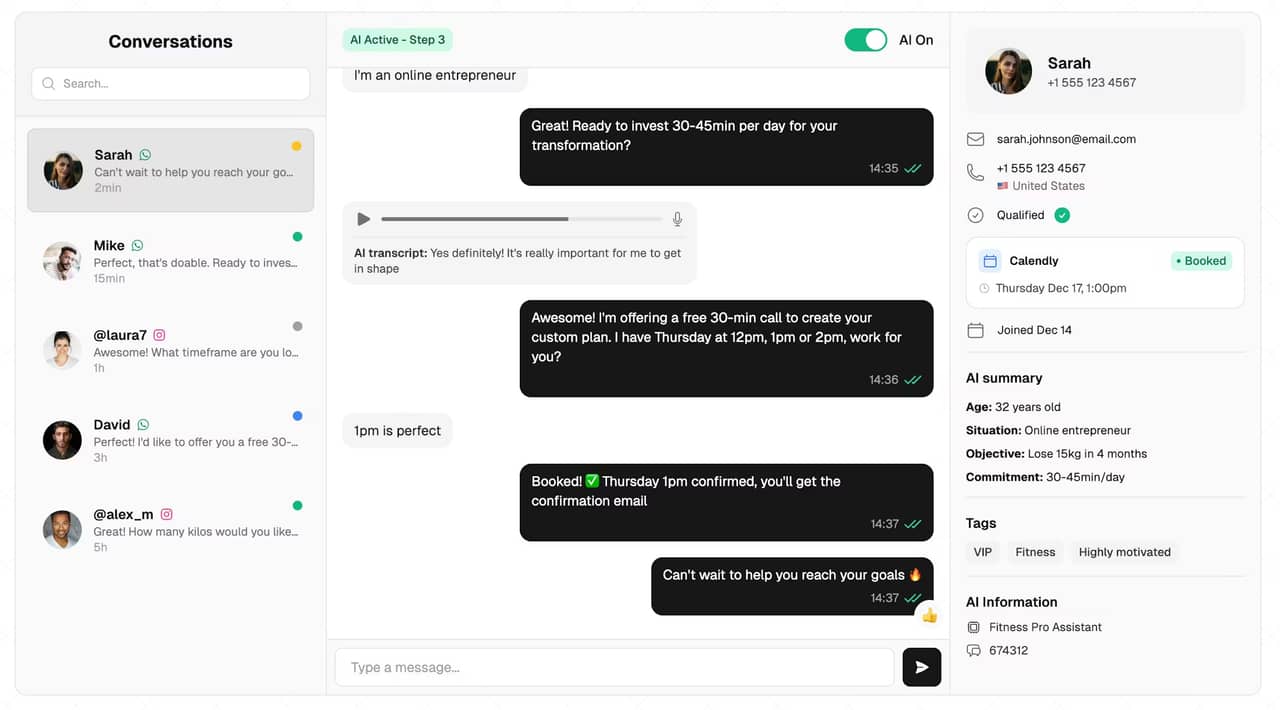
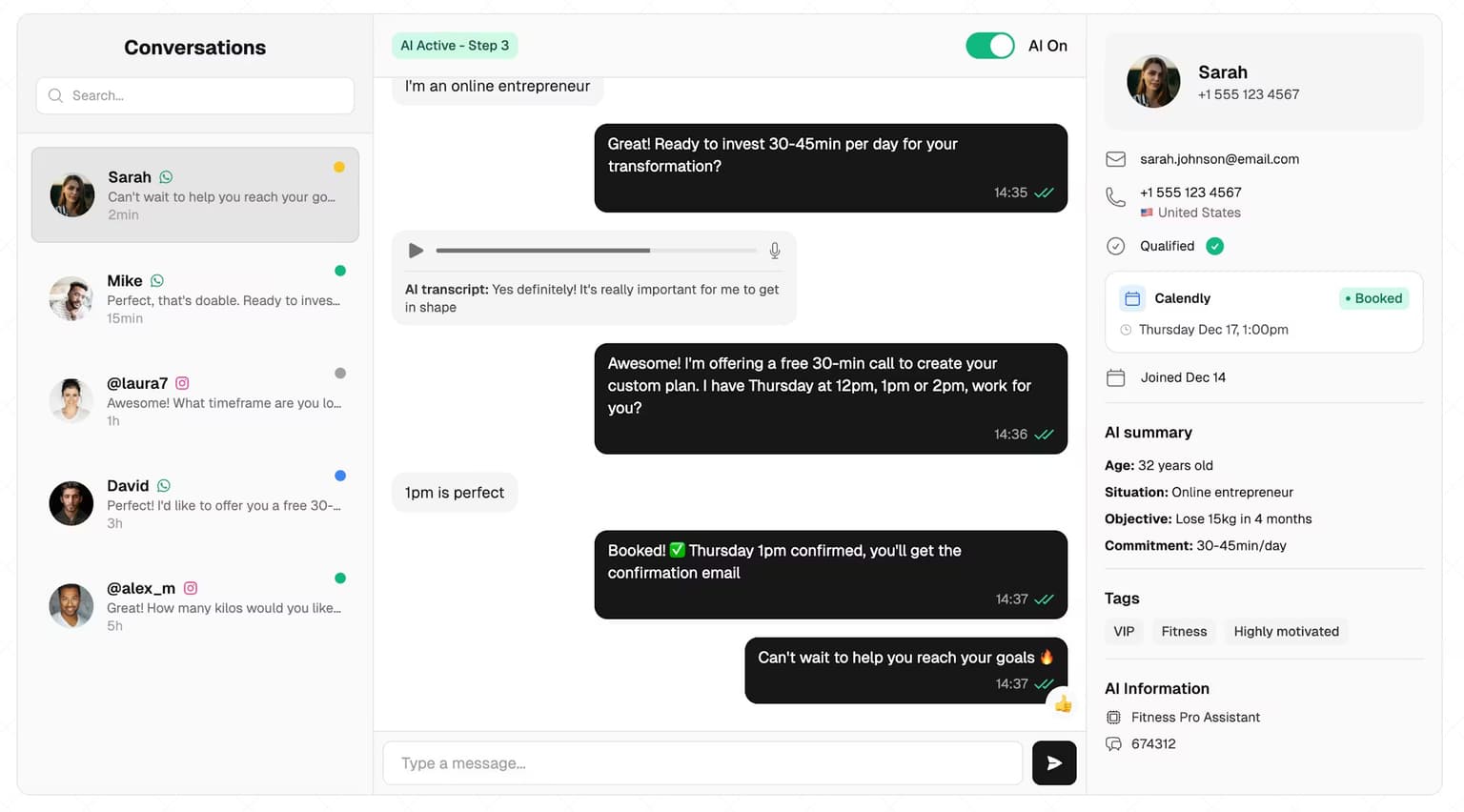
This is the job an AI setter does on top of the API account: it answers within seconds at any hour, asks your qualifying questions the way a human setter would, proposes slots on your calendar once someone fits, and follows up when a thread goes cold. The call itself stays with you or your closer; the WhatsApp conversation's job is to book it. For the bigger picture of what you can automate on the channel, see our WhatsApp automation guide.
SetSmart connects to WhatsApp in two ways: a new or dedicated number (recommended for most users), or your existing WhatsApp Business app number in coexistence mode, with an option to pause the AI on a conversation as soon as you reply from the app yourself. The same assistant runs on Instagram and Messenger, and pricing starts with a free 7-day trial, then $97/month with 1,000 messages included.
FAQ
How do I create a WhatsApp Business account?
Download the free WhatsApp Business app from the App Store or Google Play, tap Agree and continue, enter your number without a leading 0, and verify it with the 6-digit code sent by SMS or call. Then create your business profile with a name, up to three categories, hours, photo, website and description.
Can I create a WhatsApp Business account with my existing number?
Yes. Install WhatsApp Business on the same phone, confirm the number it detects, and allow it to move your chat history and media. Back up first and save your WhatsApp contacts to your phone's address book, because contacts created inside WhatsApp do not migrate. The number then stops working in personal WhatsApp.
Is a WhatsApp Business account free?
The WhatsApp Business app account is free, with no subscription and no per-message charge. Costs appear only for optional extras like Meta Verified or marketing messages, or when you connect the number to the WhatsApp Business API, where Meta bills template messages by country and category and you pay for the software you use.
Can I create a WhatsApp Business account without a phone or on a PC?
You need a phone to register the account and to link new devices. Once it exists, you can use it on WhatsApp Web, the desktop app, a second phone or an Android tablet, with up to four linked devices plus the phone. A landline you own also works for registration if you choose Call me for the code.
How do I link my WhatsApp Business account to Instagram?
In the WhatsApp Business app, go to Tools, then Facebook & Instagram, tap Instagram and log in. Your Instagram must be a professional (Business or Creator) account. Once linked, a Click to WhatsApp button appears on your Instagram profile so visitors can message you directly.
What is the difference between a WhatsApp account and a WhatsApp Business account?
A personal WhatsApp account is for private messaging. A WhatsApp Business account adds a public business profile, catalog, labels, automated greeting and away messages, quick replies and a short link, and it can later connect to the WhatsApp Business API for automation. One number can only be active in one of the two apps at a time.
Ready to automate your DMs?
Start your free 7-day trial and let AI handle your lead qualification 24/7.
Try SetSmart free