WhatsApp Business Automated Messages: 2026 Setup

Yes, WhatsApp Business can send automated messages. The free WhatsApp Business app ships with three built-in tools, the greeting message, the away message, and quick replies, and you can turn all of them on in about ten minutes without writing a single line of code.
The catch is what those tools can and cannot do. They are canned, one-way responses. They cannot read a reply, ask a follow-up question, qualify a lead, or book a sales call. For a coach, creator, or agency that runs real conversations on WhatsApp, the native features are a first touch, not a system. This guide covers exactly how to set up WhatsApp Business automated messages in 2026, gives you templates you can paste in today, and shows where the free app hits a wall and what to do about it.
Can WhatsApp Business send automated messages?
Direct answer: the WhatsApp Business app can send three types of automated messages, and they are free.
- Greeting message: a one-time welcome sent automatically when someone messages you for the first time (or after 14 days of silence).
- Away message: an auto-reply sent when you are offline, on a schedule you control.
- Quick replies: saved responses you trigger manually with a shortcut, so you never retype the same answer twice.
That is the full extent of the native automation. There is no keyword branching, no scheduled outbound broadcast to individuals, and no logic that changes the reply based on what the person actually said. Every automated message is a fixed block of text that fires on a fixed trigger.
This matters because most people searching for "WhatsApp Business automated messages" actually want two different things. Some want to switch on a simple auto-reply so leads are not ignored while they sleep, which the free app handles. Others want a bot that carries the conversation forward, qualifies the person, and drops a booking link, which the free app does not handle. Knowing which camp you are in saves a lot of wasted setup. Our WhatsApp automation guide covers the second path in depth; this article starts with the free basics.
The three native automated messages, explained
Before you touch a setting, it helps to know what each tool is genuinely for.
Greeting message
The greeting message is your digital handshake. It fires once, automatically, the moment a new contact opens a chat with your business number. Use it to confirm they reached the right place, set a response-time expectation, and point them at a first action. It does not fire on every message, only on the first contact (and again if the thread has been quiet for two weeks).
Away message
The away message is your after-hours cover. When it is on and someone messages you outside your set hours, they get an instant reply instead of silence. You can send it always, only outside a custom schedule, or only outside your defined business hours. This is the single most valuable native feature, because response speed is where most WhatsApp leads are won or lost.
Quick replies
Quick replies are saved snippets you fire manually. You type a shortcut such as /price or /book, and the full canned message drops into the chat. They are not fully automatic, a human still has to send them, but they cut the time to answer repeat questions from a minute to a second. Think of them as your most common answers, one keystroke away.
How to set up WhatsApp Business automated messages
Here is the mechanism, step by step, in the WhatsApp Business app (the layout is nearly identical on iOS and Android in 2026).
- Open Business Tools. Tap the three-dot menu (Android) or Settings (iOS), then open Business Tools. Greeting message, away message, and quick replies each have their own entry.
- Configure the greeting message. Tap Greeting message, toggle it on, tap the text to edit it, and choose recipients: everyone, everyone not in your address book, everyone except certain people, or only specific contacts. Save.
- Configure the away message. Tap Away message, toggle it on, write your text, then set the schedule: Always send, Custom schedule, or Outside of business hours. The last option is tied to the business hours in your profile, so set those first.
- Create quick replies. Tap Quick replies, add a new one, write the message, assign a shortcut (the
/keyword), and optionally attach an image. In a chat, type/to pull up the list. - Test from a second phone. Message your business number from a personal phone to confirm the greeting fires, then test the away message during off-hours. Never launch an automated message you have not received yourself.
If you want the rich-snippet version of these steps, the setup follows the same five-step arc every time: open the tools, switch on the greeting, schedule the away message, save your quick replies, and plan your upgrade path.
Greeting and away message examples for coaches and creators
Templates beat blank boxes. Here are examples framed for someone selling a service or high-ticket offer through the DM, not an ecommerce store pushing order updates. Adapt the voice to yours.
Greeting message (coach):
Hey, thanks for reaching out! You have got the right place if you are looking to outcome, e.g. drop body fat without living in the gym. I usually reply within a couple of hours. To point you in the right direction, what is the one result you want most right now?
Greeting message (agency / SMMA):
Welcome! This is Name at Agency. We help niche get more clients from Instagram and WhatsApp. Quick one so I can help fast: what does your business do, and what is the main thing you want more of, leads or booked calls?
Away message:
Thanks for your message! I am offline right now but I read every DM. I will get back to you within X hours. If it is urgent or you already know you want to talk, grab a time here: booking link.
Notice what these do: they set a time expectation and they ask one question or offer one next step. A greeting that ends with a question keeps the thread alive, which is the whole point. If you want proven scripts to build from, our Instagram DM scripts library translates cleanly to WhatsApp, and the same qualify-then-book logic underpins any good DM setter.
Where the free automated messages hit their limits
The native tools are genuinely useful, and for a solo operator with light volume they may be all you need. But there is a hard ceiling, and it shows up fast once you start driving real traffic to WhatsApp.
| What you want | Free Business app | Business API + AI |
|---|---|---|
| Greeting / away auto-reply | Yes | Yes |
| Reads the reply and responds in context | No | Yes |
| Asks qualifying questions | No | Yes |
| Books a call on your calendar | No | Yes |
| Automatic follow-ups | No | Yes |
| Runs on more than one device / team | Limited | Yes |
The three limits that hurt most:
- The message is deaf. A greeting that asks "what result do you want?" gets an answer, and then nothing happens. The free app cannot read "I want to lose 15kg before my wedding" and reply intelligently. The lead sits until you personally open the chat.
- No follow-up. If someone goes quiet after two messages, the free app will never nudge them again. That is the exact moment most deals die. In our data from 828K WhatsApp and Instagram conversations, WhatsApp responders qualify at 34% of engaged chats, and a single well-timed follow-up doubles booked calls. The free app cannot send that follow-up.
- No booking. The whole reason a coach or agency uses WhatsApp is to get a qualified person onto a sales call. The native tools can paste a link in an away message, but they cannot confirm fit first, so you fill your calendar with unqualified calls.
The positioning point worth being honest about: WhatsApp is where you qualify the lead and book the call, not where you close a high-ticket offer. The close happens on the call, run by you or your closer. Automated messages exist to fill that calendar with the right people, fast.
Beyond the basics: real WhatsApp automation
Once you outgrow canned replies, the upgrade path is the WhatsApp Business API plus an AI layer. The API is the official, higher-capacity version of WhatsApp for businesses; it is what lets software send and receive messages at scale, run on multiple seats, and connect to a real assistant instead of a fixed script. The trade-off is that the API is not free and uses conversation-based pricing, which our WhatsApp Business API pricing breakdown explains in plain numbers.
On top of the API, an AI setter does what the free automated messages cannot:
- Reads every reply and answers in your voice, so a greeting question actually leads somewhere.
- Qualifies the lead by asking your two or three key questions, exactly like a human setter would.
- Books the call by proposing calendar slots inside the chat once the person is a fit.
- Follows up automatically hours or days later if the thread goes quiet, which is where most of the recovered revenue lives.
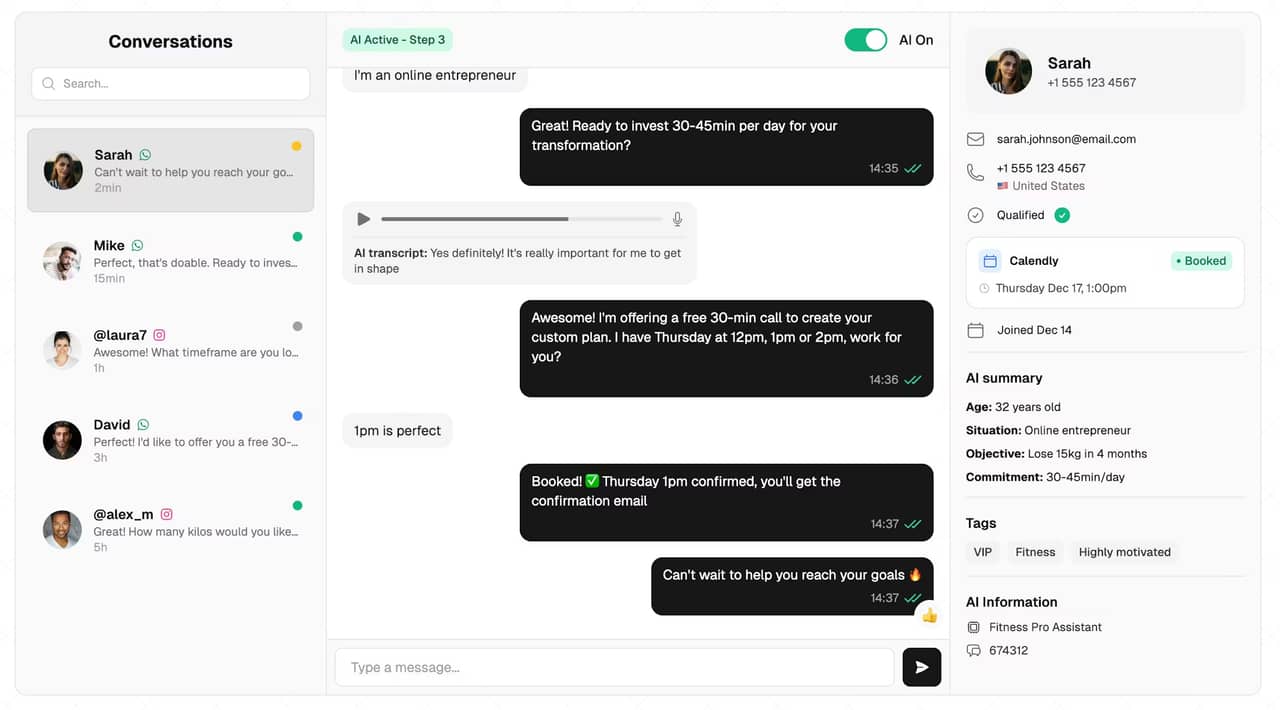
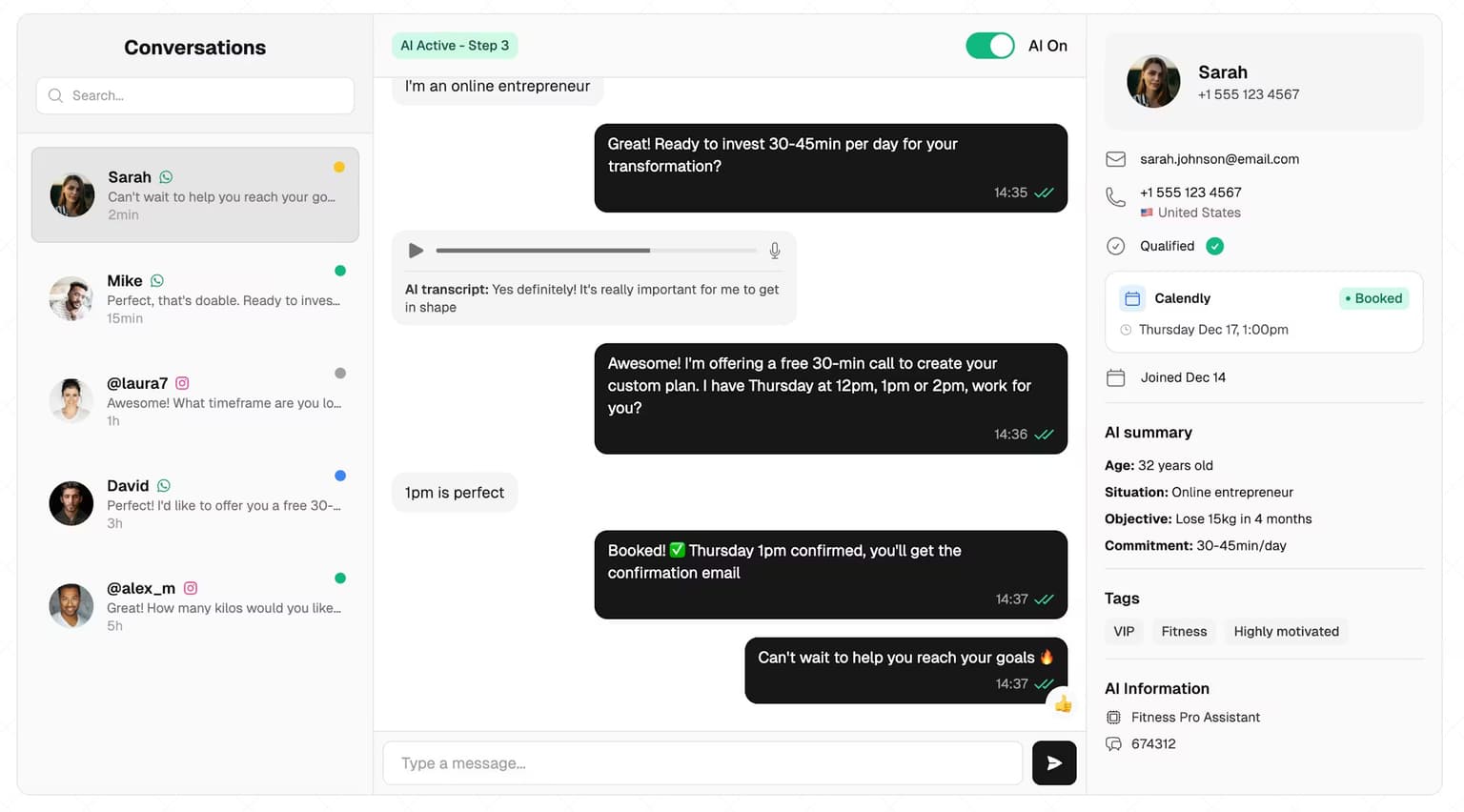
This is the difference between an auto-reply and a WhatsApp chatbot that carries the conversation. SetSmart is one option built for exactly this: it runs on WhatsApp (and Instagram and Messenger), holds a natural conversation, qualifies, and books, then hands the call to you. Pricing is a free 7-day trial, then $97/month, with 1,000 messages included. It responds in under 5 seconds, around the clock, which is the speed advantage no manual inbox can match.
If most of your WhatsApp traffic comes from ads, pairing this with click-to-WhatsApp ads means every ad click lands in a conversation that qualifies itself. And once you are running volume, a proper WhatsApp CRM keeps every lead and every follow-up organized instead of buried in a phone.
WhatsApp Business app vs API: which do you need?
Direct answer: start on the free app, and upgrade to the API the moment automated messages become a bottleneck instead of a convenience.
Stay on the free WhatsApp Business app if you:
- Handle a low volume of chats you can personally reply to.
- Just need an away message so nobody is ignored overnight.
- Are testing whether WhatsApp is even a channel for you.
Move to the Business API plus an AI setter if you:
- Run ads or a large audience that sends more DMs than you can answer.
- Are losing leads because replies are slow or follow-ups never happen.
- Want to book qualified calls automatically, not just deflect FAQs.
- Need more than one person (or a tool) on the same number.
The middle path a lot of people try is a third-party tool on top of the free app, or a platform like ManyChat for WhatsApp or Wati. Those add flows and broadcasts, but many still lean on button menus rather than genuine conversation. If your goal is booked calls rather than link clicks, weigh a flow builder against a conversational AI setter carefully. For sending updates to many contacts at once, that is a separate feature covered in our WhatsApp broadcast guide, and it also requires the API for anything beyond a small list.
One more practical note: whichever route you pick, verify your number and, ideally, earn the WhatsApp green tick so contacts trust the account replying to them. Trust plus speed is what turns an automated first message into a booked call, a theme we cover across our WhatsApp marketing playbook.
FAQ
Can WhatsApp Business send automated messages for free?
Yes. The free WhatsApp Business app includes greeting messages, away messages, and quick replies at no cost. They are canned, trigger-based replies, not a smart bot, but they cover basic auto-response needs without any subscription.
How do I set an auto reply in WhatsApp Business in 2026?
Open the WhatsApp Business app, go to Settings, then Business Tools. Use the Away message for offline auto-replies (with a schedule) and the Greeting message for a one-time welcome to new contacts. Toggle each on, write your text, and save.
What is the difference between a greeting message and an away message?
A greeting message fires once when a new contact first messages you (or after 14 days of inactivity). An away message fires whenever someone messages you outside your set hours. Use the greeting to welcome and ask a question; use the away message to manage response-time expectations.
How do I turn off automated messages on WhatsApp Business?
Go to Settings, then Business Tools, open the specific tool (Greeting message, Away message, or Quick replies), and toggle it off. Each automated message is controlled independently, so you can disable one while keeping the others active.
Can WhatsApp Business automatically reply based on what someone says?
No, not on the free app. Native automated messages are fixed blocks of text that ignore the content of the reply. To respond based on what a lead actually says, and to qualify and book calls, you need the WhatsApp Business API with an AI layer such as an AI setter.
Can I schedule automated WhatsApp messages to send later?
The free app only auto-sends the greeting and away messages on their triggers; it cannot schedule an outbound message to a specific contact at a future time. Scheduled and broadcast sending to many contacts requires the Business API, as covered in our WhatsApp broadcast guide.
Ready to automate your DMs?
Start your free 7-day trial and let AI handle your lead qualification 24/7.
Try SetSmart free