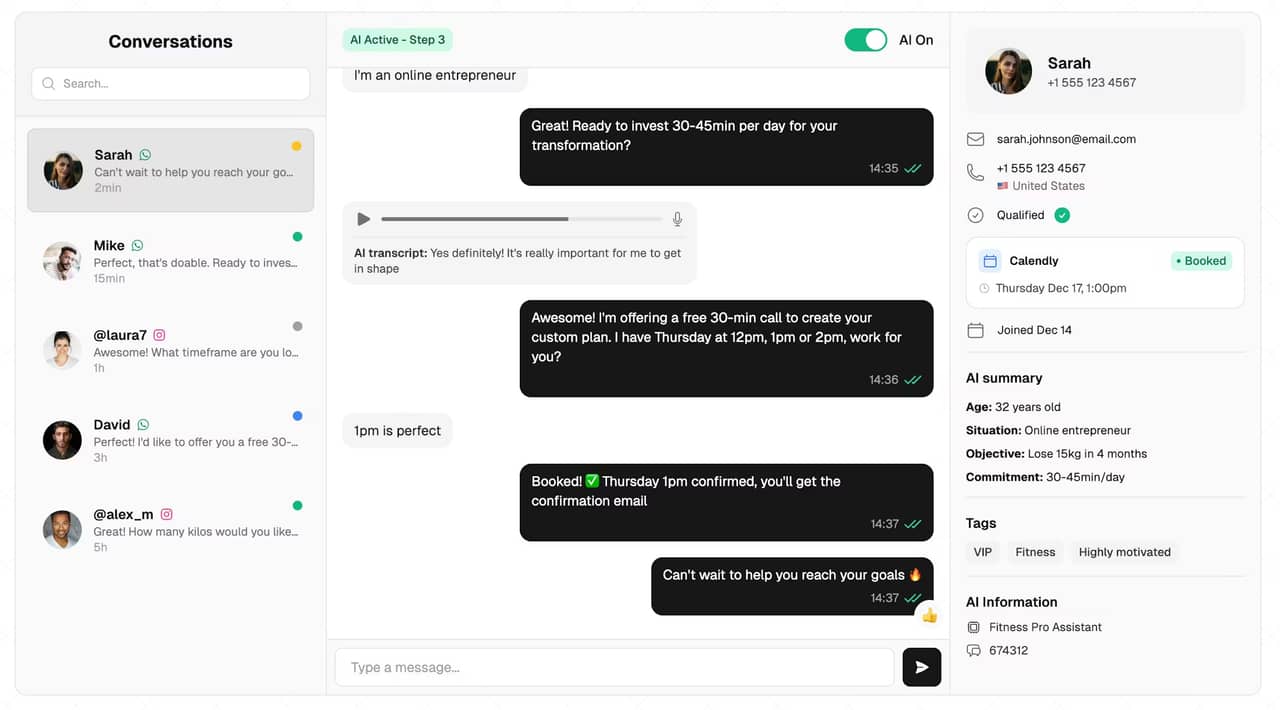
WhatsApp Schedule Message: Can You? (2026)

If you have ever typed a reply at midnight and thought "I wish this could send at 9am," you are not alone. WhatsApp schedule message is one of the most searched WhatsApp questions of the year, and the honest answer surprises most people: standard WhatsApp still has no built-in scheduler in 2026. You can absolutely schedule messages, but you do it with workarounds, and the right workaround depends on whether you are sending one friendly reminder or running client follow-ups for a coaching business.
This guide gives you the straight answer first, then walks through every method that actually works, on iPhone, on Android, and inside WhatsApp Business, with the trade-offs and risks of each. At the end you will know exactly which route fits your situation, and why coaches who send dozens of follow-ups a week eventually outgrow the phone tricks entirely.
Can you schedule a message on WhatsApp?
Short answer: not natively, but yes with a workaround. As of 2026 there is no "schedule send" button inside the WhatsApp chat window the way there is in Gmail or Outlook. Meta has been spotted testing a native scheduling feature, and it may ship broadly at some point, but you cannot rely on it today.
What you can do right now falls into four buckets:
- iPhone: use Apple's Shortcuts app to fire a WhatsApp message at a set time.
- Android: use a third-party scheduling app that taps send for you.
- WhatsApp Business app: schedule automatic away and greeting replies (not outbound messages to a specific contact).
- WhatsApp Business API: schedule real outbound messages, follow-ups, reminders, and broadcasts to many contacts, reliably and at scale.
The first three are fine for personal use or a single reminder. The fourth is what businesses use when scheduling is part of how they make money. Let's go through each one.
Why WhatsApp has no native schedule button (yet)
WhatsApp was built as a real-time, private messaging app, not an email client. Scheduled sending sits awkwardly against that design: messages are end-to-end encrypted and tied to your device, so "hold this and send it later without me" is harder than it looks. That is why, unlike broadcast lists or WhatsApp automated messages in the Business app, there is no native "send later" toggle in a normal chat.
There is also a spam consideration. A native scheduler would make mass, timed outreach trivial, and Meta polices unsolicited messaging aggressively. The controlled way to send timed and bulk messages is through the official WhatsApp Business API, where opt-in and message templates keep sending compliant. So the "missing" button is partly a design choice, not just a gap.
For personal use, that leaves you with the OS-level tricks below. For business use, it points you straight to the API route, which we cover in full further down.
How to schedule a WhatsApp message on iPhone
iPhone users have the cleanest personal workaround because it uses a built-in Apple tool: the Shortcuts app. No third-party download, no giving another app access to your chats.
Here is the process:
- Open the Shortcuts app (it comes pre-installed on iOS).
- Tap the Automation tab, then the + to create a Personal Automation.
- Choose Time of Day and set the date and time you want the message to go out.
- Add an action, search for WhatsApp, and pick Send Message via WhatsApp.
- Type your message and choose the recipient.
- Save the automation.
The one catch: at the scheduled time, iOS usually shows a notification and you tap Send to confirm. Depending on your iOS version you may be able to toggle Run Immediately so it sends without the tap, but historically WhatsApp sends through Shortcuts have needed one confirmation tap. That is fine for a "good morning" text; it is useless for business messages you need to fire while you are asleep or with a client.
Best for: a personal reminder or a birthday message. Not for: timed client follow-ups you cannot babysit.
How to schedule a WhatsApp message on Android
Android does not have an exact Shortcuts equivalent baked in, so most people use a third-party scheduling app. These apps use Android's accessibility service to open WhatsApp and tap send at the time you set.
The general steps are similar across apps:
- Install a reputable WhatsApp scheduler from the Play Store.
- Open it and grant the accessibility permission it requests (this is how it can tap send for you).
- Compose your message, pick the contact or group, and set the date and time.
- Leave the app running in the background so it can trigger at the scheduled moment.
Some Android builds and manufacturer skins have experimented with a "schedule send" style feature, but availability is inconsistent, so a dedicated app is still the common route. The reliability depends heavily on your phone's battery optimization settings; aggressive power saving can kill the background app and skip your scheduled send.
Best for: occasional personal scheduling. Watch out for: permissions, battery settings, and app trust (more on risk next).
Third-party WhatsApp scheduling apps and their risks
There is a whole category of scheduling tools, from Play Store apps to browser extensions that sit on top of WhatsApp Web. Common names include SKEDit, Blueticks, and various "auto text" utilities. Their free tiers usually cap you at a handful of scheduled messages per day, with paid upgrades for more volume and features.
Before you install one, understand the trade-offs:
- Access to your messages. Accessibility permission and WhatsApp Web extensions can read and act on your chats. Only use well-reviewed tools you trust, and never one that asks you to log in with your number on a shady site.
- Ban risk. Automating a personal WhatsApp account against the terms of service can get the number restricted or banned. This is the same risk we flag for unofficial WhatsApp automation tools that scrape WhatsApp Web instead of using the official API.
- Reliability. These apps depend on your phone being on, unlocked enough, and not aggressively power-managed. Miss one of those and the message silently fails.
For a personal reminder, a trusted app is fine. For anything tied to revenue, where a missed message means a missed booking, phone-based automation is too fragile. That is exactly where businesses move to the official route.
WhatsApp Business app: schedule away and greeting messages
If you use the free WhatsApp Business app, you already have a form of scheduling, just not the kind most people mean. You cannot schedule an outbound message to a specific person at a future time, but you can schedule automatic replies:
- Away message: an auto-reply that fires when someone messages you outside your set hours. You can put it on a custom schedule (for example, evenings and weekends).
- Greeting message: a one-time welcome sent when a new contact first messages you.
To set these up, open the Business app, go to Settings, then Business Tools, and toggle on the away and greeting messages. The full walkthrough lives in our WhatsApp Business automated messages guide.
This is genuinely useful: it buys you time and sets response expectations. But it is reactive. It only fires when someone messages you first, and it sends the same canned text to everyone. It cannot schedule a personalised follow-up to a warm lead three days after a call, and it cannot answer based on what the person actually said. For that, you need the API and a smarter layer on top. If you are still deciding between the two apps, our WhatsApp vs WhatsApp Business breakdown helps.
The reliable route: schedule with the WhatsApp Business API
Everything above is a phone trick. The WhatsApp Business API is the grown-up version: it runs on a server, not your handset, so scheduled sends fire on time whether your phone is on or off, in your pocket or charging.
With the API (and a platform on top of it) you can:
- Schedule a specific message to a specific contact at a future time, reliably.
- Set recurring reminders (appointment reminders, renewal nudges, weekly check-ins).
- Send scheduled broadcasts to many opted-in contacts at once, covered in our WhatsApp broadcast guide.
- Trigger timed follow-up sequences automatically after a lead goes quiet, the same pattern behind our AI lead follow-up playbook.
The cost of sending is conversation-based rather than per-message, and the details are in our WhatsApp Business API pricing guide. You will also want your number verified, ideally with a WhatsApp green tick, so contacts trust the account messaging them on schedule.
The big shift with the API is that scheduling stops being a manual chore and becomes part of an automated system, which is where a conversational AI setter changes the game entirely.
Scheduling methods compared
Here is how the options stack up for the things that actually matter when you are messaging leads and clients, not just friends.
| Method | Reliable unattended | Recurring | Bulk / many contacts | Compliant |
|---|---|---|---|---|
| iPhone Shortcuts | No (needs a tap) | Limited | No | Personal use |
| Android scheduler app | Fragile | Some apps | No | Ban risk |
| Business app away message | Yes (reactive only) | Yes (schedule) | No | Yes |
| Business API + AI setter | Yes | Yes | Yes | Yes |
The pattern is clear: personal tricks handle a reminder, the Business API handles a business.
What coaches and creators actually schedule
Most people searching for "schedule WhatsApp message" want one of three things, and the right tool differs for each.
A one-off reminder. "Text mum happy birthday at 8am." Use Shortcuts on iPhone or a trusted scheduler on Android and move on. No business tooling needed.
Recurring nudges. Weekly accountability check-ins with clients, monthly renewal reminders. The phone apps can technically do some of this, but reliability breaks down over weeks. The API version simply runs.
Lead follow-ups that make money. This is the big one for coaches, and it is where scheduling stops being a convenience and becomes revenue. A lead replies to your ad or story, you chat, then they go quiet. The follow-up you schedule for two days later is often what turns that thread into a booked call.
The data backs this up hard. In our analysis of 828K real DM conversations, a single follow-up message more than doubles booked calls (+106%) among engaged leads. If you are manually remembering to message every quiet lead at the right time, you are leaving booked calls on the table. Scheduling that follow-up automatically is the single highest-leverage thing you can do, and it is exactly what an AI setter does on autopilot. You can dig into the full numbers in our DM conversation research.
Crucially, none of this "closes" the sale in the DM. For coaches selling a high-ticket offer, the scheduled follow-up exists to book the sales call, the actual close happens live on that call. Think of scheduling as filling your calendar with qualified conversations, the same job an appointment setter does, just automated.
From scheduling to a real system
Once you are scheduling follow-ups, the natural next step is to stop scheduling them one by one. That is the leap from "I schedule a few messages" to "my WhatsApp runs a follow-up system."
A conversational setup can:
- Reply instantly when a lead first messages, then schedule the follow-ups if they go quiet.
- Qualify the lead by asking the right questions, not just blast canned text.
- Book the call straight into your calendar when the lead is ready.
That is the difference between a scheduled message and a WhatsApp chatbot that actually books calls. It is also why creators running ads increasingly pair click-to-WhatsApp ads with automated follow-ups, and why teams juggling many chats move to a shared WhatsApp CRM instead of one phone. If you are coming from a flow-builder background, tools like ManyChat for WhatsApp or native WhatsApp Flows add structure, but weigh button menus against genuine conversation depending on whether your goal is link clicks or booked calls. The broader playbook lives in our WhatsApp marketing guide.
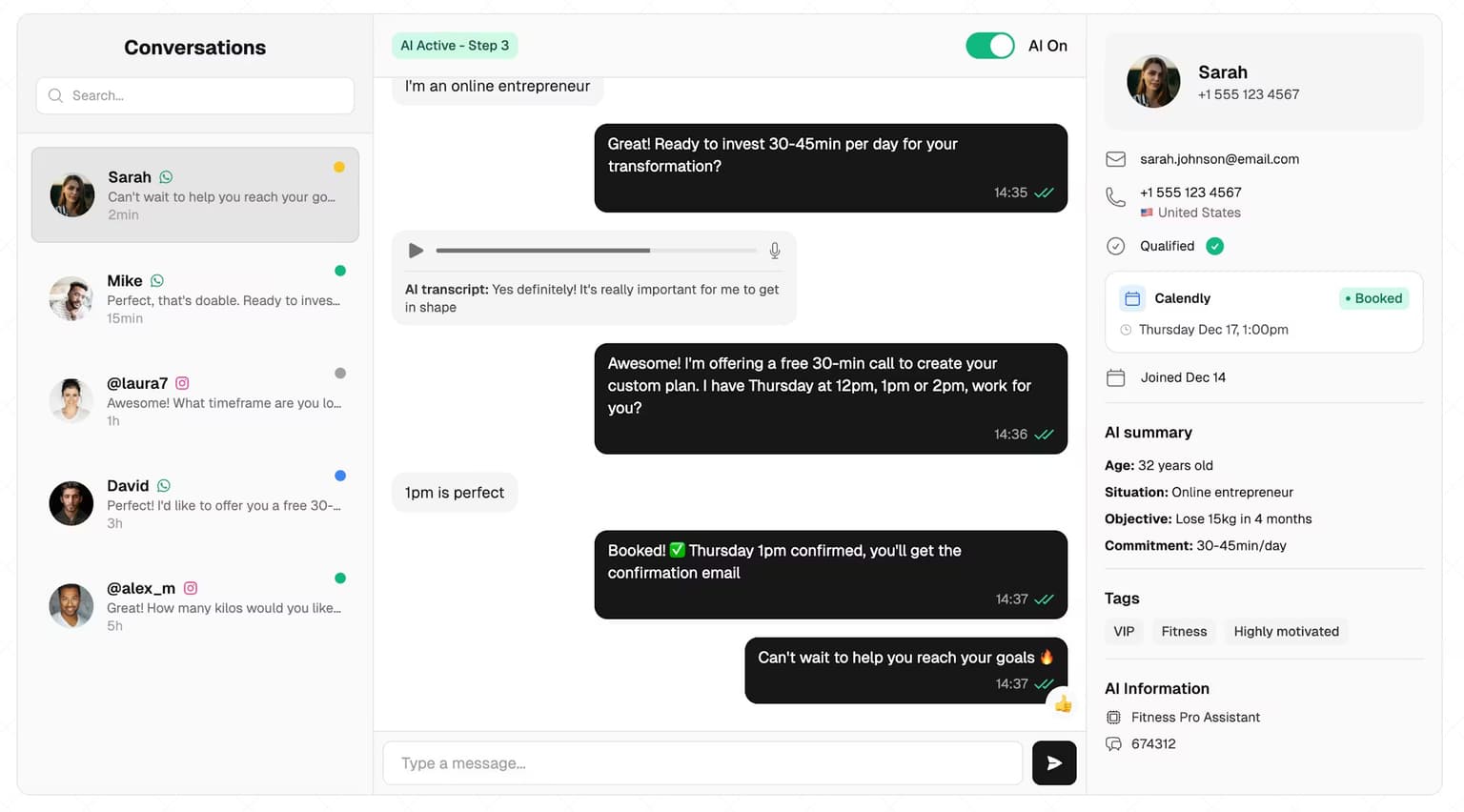
SetSmart is built for exactly this: it uses the official WhatsApp Business API, replies in seconds, schedules and sends the follow-ups automatically, qualifies the lead, and books the call, all without you touching your phone at 9am. It starts with a free 7-day trial, then from $97/month.
FAQ
Can you schedule a message on WhatsApp?
Not with a native button, but yes with a workaround. On iPhone you can use the Shortcuts app, on Android a third-party scheduler app, and for business use the WhatsApp Business API can schedule real outbound messages and follow-ups reliably. Standard WhatsApp has no built-in "send later" toggle as of 2026.
How do I schedule a WhatsApp message on iPhone?
Open the Shortcuts app, go to the Automation tab, create a Personal Automation set to a Time of Day, add the "Send Message via WhatsApp" action, type your message, choose the recipient, and save. At the scheduled time you usually tap Send to confirm unless your iOS version lets the automation run immediately.
How do I schedule a WhatsApp message on Android?
Install a reputable WhatsApp scheduling app, grant it the accessibility permission, compose your message, pick the contact, and set the time. Keep the app running in the background and disable aggressive battery optimization so it can trigger on schedule. Reliability varies by phone.
Is it safe to use a third-party app to schedule WhatsApp messages?
For occasional personal use with a well-reviewed app, generally yes, but there are real risks. These tools can access your chats, and automating a personal number can breach WhatsApp's terms and get it restricted. For business volume, use the official WhatsApp Business API instead of phone-based apps.
Can WhatsApp Business schedule messages?
The free WhatsApp Business app can schedule automatic away and greeting replies, but not outbound messages to a specific contact at a future time. For scheduled outbound messages, recurring reminders, and broadcasts, you need the WhatsApp Business API, which many coaches pair with an AI setter to also qualify and book calls.
Can I schedule recurring WhatsApp messages?
Phone apps can handle simple repeats, but they tend to break over time due to battery and permission issues. For dependable recurring reminders, appointment nudges, or weekly check-ins, the Business API is the reliable route because it runs on a server rather than your handset.
Ready to automate your DMs?
Start your free 7-day trial and let AI handle your lead qualification 24/7.
Try SetSmart free