How to Create a Poll on WhatsApp (+ 2026 Settings)

To create a poll on WhatsApp, open a chat or a group, tap Attach (the paper clip on Android, the plus sign on iPhone), choose Poll, type your question and up to 12 options, then tap Send. Everyone in the chat can vote with one tap and the results update live. Since August 2026 you can also hide voter names, set an end time that locks voting, and edit the question for 15 minutes after sending.
That is the short answer. The longer one matters if you use WhatsApp for work: polls behave differently in chats, groups, communities and channels, some settings exist only on the phone apps, and businesses on the official WhatsApp API cannot send polls at all. This guide covers the exact steps on every device, the 2026 settings, the real limits from WhatsApp's Help Center, what to do when the Poll option is missing, and how coaches turn a poll into private conversations that end in a booked sales call.
How to create a poll on WhatsApp: the quick version
The steps are the same in a one-to-one chat and in a group. Labels below come from WhatsApp's How to use polls Help Center page.
- Open the chat or group where you want people to vote.
- Tap Attach, then Poll.
- Pick your settings: Allow multiple answers, Hide voter names and Set an end time for your poll.
- Type the question under Question (255 characters maximum).
- Add the options under Options, up to 12, each up to 100 characters.
- Tap Send.
The poll appears in the chat as a card. Each person taps an option to vote, taps it again to remove the vote, and sees the counts move in real time. You get notified of incoming votes as long as push notifications for WhatsApp are on.
Step by step on Android, iPhone and desktop
WhatsApp's Help Center documents each platform separately, and the differences are small but real. The biggest one: the 2026 settings (hidden voter names and end time) are documented for the phone apps, not for WhatsApp Web and desktop.
On Android
- Open the chat or group.
- Tap Attach (the paper clip) and then Poll.
- Choose your settings. Allow multiple answers is on by default; turn it off to give each person one vote. Turn on Hide voter names or Set an end time for your poll if you need them.
- Under Question, type your question.
- Under Options, add up to 12 answers. To change the order, tap and hold the four horizontal lines next to an option and slide it up or down.
- Tap Send (the paper airplane).
On iPhone
- Open the chat or group.
- Tap Attach (the plus sign) and then Poll.
- Choose your settings: Allow multiple answers, Hide voter names and Set an end time for your poll.
- Under Question, type your question.
- Under Options, add up to 12 answers. Tap and hold the three horizontal lines next to an option to drag it.
- Tap Send.
On WhatsApp Web, Windows and Mac
- Open the chat or group.
- Click the plus icon and then Poll.
- Toggle Allow multiple answers on or off.
- Type the question and the options (same 255 and 100 character limits).
- Click Send.
The desktop Help Center page lists only the multiple-answers toggle. If you want a deadline or hidden names, create the poll from your phone. The web page also notes that you receive one push notification per poll you create, so do not expect a ping for every single vote.
The 2026 WhatsApp poll settings explained
On August 4, 2026, WhatsApp announced three poll upgrades on its blog in a post titled Your Group Chats Upgraded: an end time that locks voting, hidden voter names, and editing the question within 15 minutes. The same update added @all mentions (admin-only in groups with more than 32 people) and a way to create a new group from an existing one. Here is what each poll setting actually does.
| Setting | Default | What it does | Use it for |
|---|---|---|---|
| Allow multiple answers | On | People can tick several options. Turned off, tapping a new option removes the earlier vote. | Off for decisions ("Which day?"), on for preferences ("Which topics?") |
| Hide voter names | Off | Everyone, including you, sees the counts but not who voted for what. | Sensitive questions: weight, money, confidence |
| Set an end time | None | Voting closes at the time you choose. | Deadlines: "Pick the live topic by Friday 6 pm" |
| Edit question | 15 minutes | Long-press the poll and tap Edit to fix the question. Options and settings stay as sent. | Typos and unclear wording |
Two rules catch people out. First, the Help Center is explicit: poll settings can't be changed after you create the poll. If you forgot to set an end time, delete the poll and send a new one. Second, the hide setting "only controls what's displayed in the poll results screen," in WhatsApp's words. It hides names on the results screen for everyone, you included. It is not a separate anonymous voting system, so do not promise people more privacy than that.
WhatsApp poll limits in 2026
These are the numbers that shape what you can ask, taken from WhatsApp's Help Center pages on chat polls and channel polls and quizzes.
| Limit | Value | In practice |
|---|---|---|
| Question length | 255 characters | Room for one clear question plus a short context line |
| Options per poll | Up to 12 | Three to five options get cleaner answers than twelve |
| Option length | 100 characters | Short labels read better on a phone screen |
| Editing | Question only, within 15 minutes | Channel polls cannot be edited at all |
| Deleting | Delete for everyone or for me | Channel polls can be deleted for up to 30 days |
| Photo polls | Channels, up to 12 photos | Photo polls can't be forwarded |
| Sending through the Business API | Not possible | There is no poll message type for businesses on the official platform |
A quick warning about older guides: many still say WhatsApp polls cannot be anonymous, cannot have a deadline and cannot be edited. That was true until August 2026. Some also claim channels do not support polls, which has not been true for a while: WhatsApp has a dedicated Help Center page for channel polls and quizzes.
How to create a poll in a WhatsApp group
A group poll works exactly like a poll in a one-to-one chat: Attach, Poll, settings, question, options, Send. What changes is who sees what.
- Every member can vote, and every member sees the live counts under each option.
- View votes shows who picked each option, unless you turned on Hide voter names before sending.
- Any member can create a poll in a group where everyone can send messages. If the group is set so only admins can send messages, only admins can post polls.
- Pin it if the group is busy, so the poll stays at the top until the vote closes.
Groups are where polls shine for decisions: which date works for the workshop, which time zone suits most people for the live call, which module the cohort wants next. Turn off multiple answers for those, and set an end time so the decision does not drag on for a week.
Polls in WhatsApp communities
In a community, polls usually go in the Announcements group, where only community admins can post. WhatsApp's About community announcements page confirms that members can vote in and react to polls there, reply and react to announcements, and see the member count. A community holds up to 2,000 members across its announcement group and its linked groups. Our guide to WhatsApp communities explains how the announcement group, topic groups and events fit together, which is useful if you run several cohorts at once.
How to post a poll or quiz in a WhatsApp channel
A channel is a one-way feed in the Updates tab: you post, followers read. Polls are one of the few ways followers can respond. WhatsApp's channel help page states that "like all channel updates, polls are public and anyone using channels can vote on them."
To post one, open your channel, tap Attach, then Poll, write a question (255 characters) and up to 12 options (100 characters each), and turn off Allow multiple answers if you want one vote per person. Channels add a few extras and rules of their own:
- Photo polls. Tap Add text or photo and pick a photo for each option, up to 12. Photo polls can't be forwarded.
- Quizzes. Share a multiple-choice quiz and mark the right answer. Open the quiz and tap View responses to see the results.
- No edits. You can't edit a channel poll. You can delete it for up to 30 days and post a new one.
- Voter details for admins. As a channel admin, View votes shows each responder's profile name, when they voted and, depending on their privacy settings, their profile photo.
If you are deciding between a channel, a community and a broadcast list for your audience, our WhatsApp broadcast guide compares the four formats side by side. The short version: channels give reach without conversation, and a poll is the closest a channel gets to hearing back from followers.
Can you see who voted on a WhatsApp poll?
Yes, by default. In chats and groups, open the poll and tap View votes: WhatsApp lists the vote count per option and who picked what. Anyone in the chat can open that screen, not only the person who created the poll.
There are two exceptions:
- Hide voter names was on. If the creator turned it on before sending, nobody sees names, the creator included. Only the counts are visible.
- Channels. Followers vote publicly, and admins see responders' profile names in the poll details, subject to each person's privacy settings.
This matters more than it looks. A poll that asks "What is stopping you from losing the weight?" with names visible will get fewer honest answers than the same poll with names hidden. For anything personal, hide the names, then invite people to tell you more in private.
Editing, deleting and finding WhatsApp polls
Edit the question. Within 15 minutes of sending, long-press the poll, tap Edit, fix the question and confirm. Options and settings stay as they were.
Change your vote. Tap your option again to remove the vote, then tap a different one. If multiple answers are off, tapping a new option deselects the old one automatically.
Delete a poll. Long-press the poll, tap Delete, then choose Delete for everyone or Delete for me. The usual time window for deleting messages for everyone applies.
Find an old poll. On Android and iPhone, tap the search bar in the Chats tab and choose the Polls filter. It lists polls across your chats, which beats scrolling a busy group for last week's vote.
Why don't I see the poll option on WhatsApp?
This is one of the most common questions in Google's "People also ask" box for this topic. In order of likelihood:
- Your app is out of date. Update WhatsApp from the App Store or Google Play, and update your phone's operating system. WhatsApp's troubleshooting steps for polls start there.
- You are in a broadcast list. WhatsApp's poll help page covers chats and groups, and its channel page covers channels. Broadcast lists are not listed, and a broadcast arrives as separate private chats anyway, so nobody would see a shared tally. Use a group or a channel for a public vote.
- You are on desktop and looking for the new settings. The Poll option exists on WhatsApp Web, Windows and Mac, but the desktop help page only documents the multiple-answers toggle. Create the poll on your phone for end times and hidden names.
- Only admins can send messages in that group. If the group admin restricted messages, the Poll option is reserved for admins too.
- Connection issues. WhatsApp suggests restarting the phone and switching between Wi-Fi and mobile data if a poll will not send or a vote will not register.
WhatsApp polls for business: what the API can and cannot do
Here is the part most poll tutorials skip. Polls are a feature of the WhatsApp apps. The WhatsApp Business Platform (the Cloud API that automation tools, CRMs and AI assistants use) has no poll message type. Meta's developer community answer is short: there is currently no API to send a poll through the business API. So no official tool can push a native poll into thousands of customer chats, and no tool can read the results of a poll you posted by hand.
What the API offers instead are interactive messages. Meta's documentation lists reply buttons (up to 3 options, shown under the message) and list messages (a menu with up to 10 rows). Each tap comes back as a reply tied to the person who tapped, which is arguably better than a poll for business: you know exactly who chose what, inside their private chat. Interactive messages need an open 24-hour customer service window, which our WhatsApp API guide explains alongside templates and pricing.
| Native poll (app) | Reply buttons (API) | Plain-text question (any) | |
|---|---|---|---|
| Where it works | Chats, groups, communities, channels | 1:1 chats with a business number | Everywhere |
| Options | Up to 12 | 3 buttons, or 10 rows in a list | Unlimited, free-form |
| Shared tally | Yes, live | No | No |
| Answer tied to the person | Only if names are visible | Yes | Yes |
| Leads to a real conversation | Rarely | Sometimes | Yes, people explain their answer |
| Best for | Group decisions and audience research | Fast menus: yes / no / later | Qualifying a lead before a sales call |
You will find tools that claim to send "real" WhatsApp polls to customers. They usually work by linking a phone number as a device and acting like a person on the app, outside Meta's official Business Platform. Before you trust your main business number to that kind of setup, read WhatsApp's business terms and weigh the risk of losing the number. If you are still choosing how your business should run on WhatsApp, our comparison of WhatsApp vs WhatsApp Business covers the three products (the consumer app, the Business app and the Business Platform) and what each allows.
How coaches use WhatsApp polls
For an online fitness, weight-loss or nutrition coach, WhatsApp polls are a delivery and research tool. They help you run a group program and learn what your audience wants. They do not sell anything by themselves. Here are the setups that work.
Inside a group program
If you run a cohort in a WhatsApp group (one of the formats in our group coaching guide), polls remove the friction from logistics and engagement:
- Scheduling: "Which time works for Thursday's live Q&A?" with three time slots, one answer, end time Wednesday night.
- Weekly check-ins: "How many workouts did you complete this week? 0 / 1-2 / 3-4 / 5+" with names hidden, so nobody feels judged.
- Content votes: "Which recipe pack do you want next?" with multiple answers on.
- Feedback: "How useful was this week's module? Very / Somewhat / Not really" before you plan the next one.
On a channel or a free community
A channel or a free challenge community is where polls do audience research:
- Pain point polls: "What is the hardest part of losing weight for you? Cravings at night / No time to cook / Losing motivation / Not knowing what to eat." The distribution tells you what your next reel, lead magnet or offer should address.
- Topic polls for lives: let followers pick the topic, then announce the live with the winning option.
- Interest checks: "Would you join a 6-week coached program starting in January? Yes, tell me more / Maybe later / No." This is the poll that matters for sales, and also the one that most often goes nowhere.
Poll ideas that work for coaches
| Goal | Example question | Settings |
|---|---|---|
| Pick a date | Which evening works for the group call? | One answer, end time |
| Honest check-in | How did your nutrition go this week? | One answer, names hidden |
| Audience research | What is your biggest struggle right now? | Multiple answers, names hidden |
| Live topic | What should Sunday's live cover? | One answer, end time |
| Offer interest | Want details on the January program? | One answer, names visible |
If you also run Instagram, the logic is the same as a story poll sticker: a cheap tap that signals interest. Our guide to Instagram story questions compares the question, poll, quiz and slider stickers and how each one opens a DM.
From a poll vote to a booked sales call
The problem with polls is that a vote is not a conversation. Forty people tapping "Yes, tell me more" feels great, and then nothing happens. You cannot reply to a vote. If names are hidden, you do not even know who voted. And messaging forty people one by one at 10 pm is exactly the job that slips.
The fix is to make the poll the first step, not the last one:
- Post the poll in your channel, community or free group, with names visible on the offer-interest question.
- Follow up in the same space with a click to chat link. Right after the poll, post: "If you voted yes, tap here and send me 'JANUARY'." A click to chat link with a prefilled message opens a private chat with your business number, so the lead starts the conversation and you never have to message anyone cold.
- Answer every private chat in seconds, ask the qualifying questions you would ask on a discovery form (our coaching intake form lists the ones that matter), and follow up when someone goes quiet.
- Book the sales call. The close happens on the call, with you or your closer, not in the chat.
Private WhatsApp chats are where this pays off. In the 828K AI DM conversations we analyzed, WhatsApp leads who replied qualified at 34%, roughly 1.9x the Instagram rate. That rate depends on someone replying fast and keeping the conversation going, every time, including right after a poll drops and twenty people message at once.
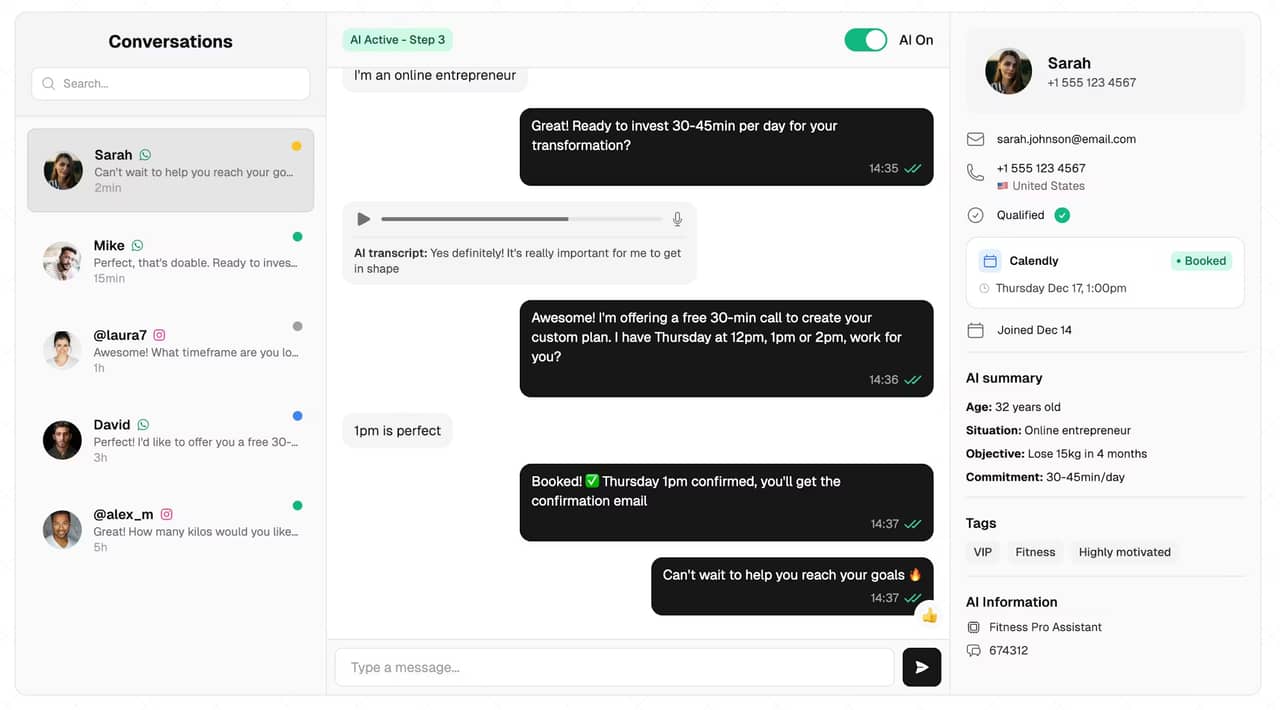
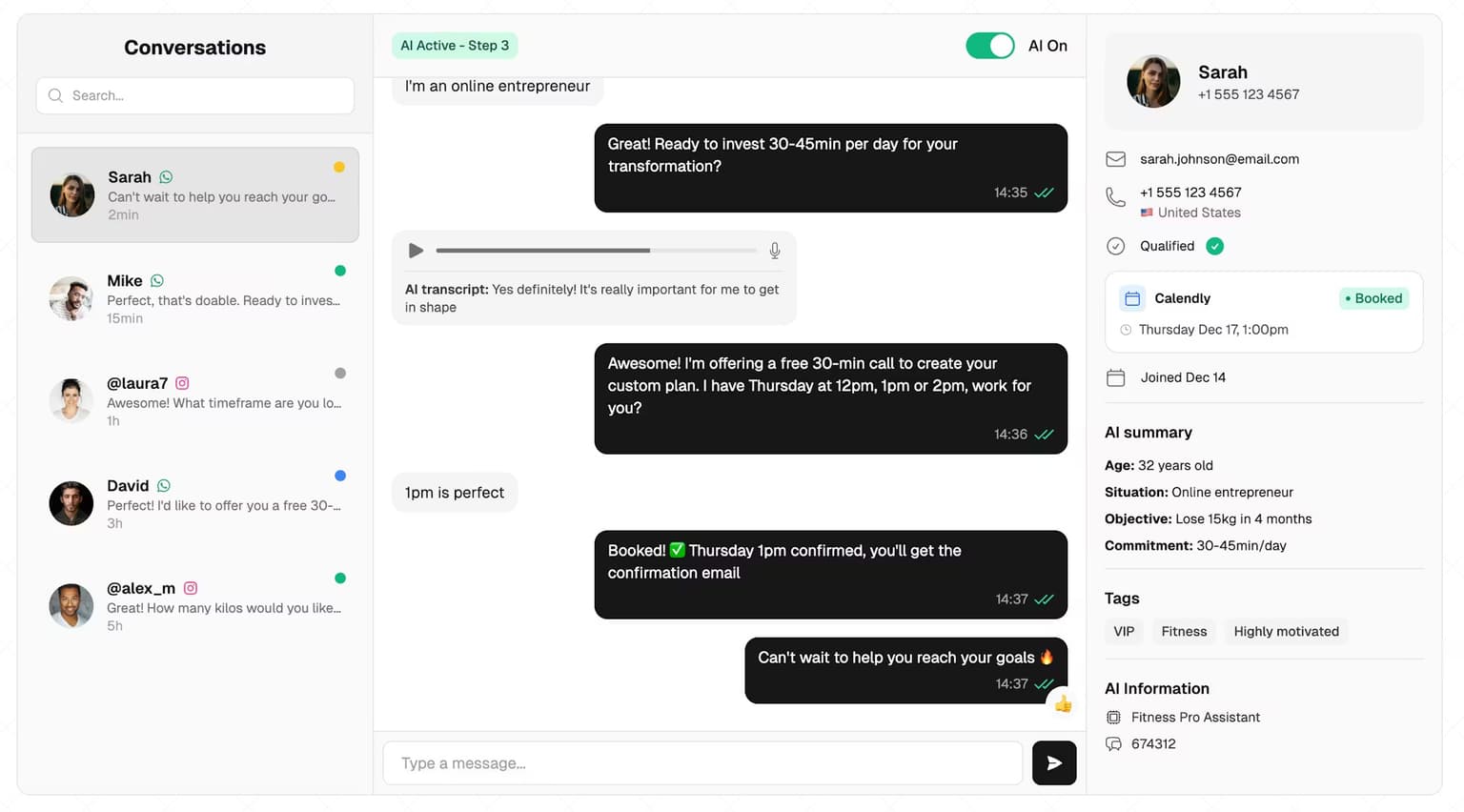
That is the job of an AI setter connected to your WhatsApp number. SetSmart answers every 1:1 chat instantly, asks your qualifying questions in plain language, follows up automatically when a lead stops replying, and books the call in your calendar. It works in private chats, not inside groups or channels, so the poll stays yours and the conversations it creates get handled. Mathis Ladoué, an online fitness coach, sums up the result: "I book 15 to 25 calls per week... without managing a single setter." For the wider picture of what can be automated on WhatsApp and what cannot, see our guide to WhatsApp automation.
FAQ
Can you create an anonymous poll on WhatsApp?
Yes, since the August 2026 update. Turn on Hide voter names before you send the poll, on Android or iPhone. Everyone, including you, will see the vote counts but not who voted for what. The setting cannot be changed after sending, so decide before you tap Send.
How do I create a poll in a WhatsApp group?
Open the group, tap Attach (paper clip on Android, plus sign on iPhone), then Poll. Choose your settings, type a question of up to 255 characters, add up to 12 options and tap Send. Every member can vote. If only admins can send messages in that group, only admins can post polls.
Can I see who voted on my WhatsApp poll?
Yes, unless Hide voter names was on. Open the poll and tap View votes to see the count for each option and who picked it. In channels, admins see responders' profile names in the poll details, depending on each person's privacy settings.
Can you edit a poll on WhatsApp after sending it?
You can edit the question within 15 minutes: long-press the poll, tap Edit, update it and confirm. You cannot change the options or the settings. Channel polls cannot be edited at all, but you can delete them for up to 30 days and post a new one.
Why doesn't my WhatsApp have a poll option?
Usually because the app or your phone's operating system is out of date, so update both first. Polls are documented for chats, groups and channels, not broadcast lists. In groups where only admins can send messages, members cannot post polls either. On desktop, the Poll option exists but the end time and hidden names settings are phone-only.
Can a business send WhatsApp polls through the API?
No. The WhatsApp Business Platform has no poll message type, so automation tools cannot send native polls or read their results. Businesses use interactive reply buttons (up to 3 options) or list messages (up to 10 rows) instead, or simply ask the question in the chat and let people answer in their own words.
SetSmart's AI answers every private WhatsApp chat in seconds, qualifies each lead, follows up automatically, and books the sales call in your calendar, so the people who vote "tell me more" actually get a reply. Free 7-day trial, then $97/month with 1,000 messages included.
Ready to automate your DMs?
Start your free 7-day trial and let AI handle your lead qualification 24/7.
Try SetSmart free