WhatsApp Communities: How They Work + Limits (2026)

WhatsApp communities are WhatsApp's way of grouping several related group chats under one roof. A community has an Announcements group where only admins post to every member, plus up to 100 topic groups that members can join and chat in. A single community holds up to 2,000 members in total, it is free, and anyone can create one from the regular WhatsApp app (but not, for now, from the WhatsApp Business app).
For a coach, that structure maps neatly onto a program: one place for official updates, one group per cohort or topic, and a private group for your team. It is a great home for clients who already paid. It is a poor place to find and qualify new ones, because sales still happen in 1:1 chats and DMs, then on a booked call. This guide explains how WhatsApp communities work under the hood, the exact limits, how a community compares with a group, a channel and a broadcast list, how to set one up, the privacy rules most guides skip, and how to plug a community into a funnel that books sales calls.
What is a WhatsApp community?
A WhatsApp community is a container for groups. WhatsApp's own About communities page describes it as a way to bring "members together in topic-based groups," where admins "reach members with important updates by sending announcements" and members chat in the groups that matter to them.
Think of it as three layers:
- The community itself. A name, a description and a square icon. It is the umbrella, not a chat.
- The Announcements group. Created automatically. Every member is in it, only admins can post, and members can react, reply and vote in polls.
- The groups. Normal WhatsApp groups linked to the community, each with its own topic, admins and members. You can add groups you already run or create new ones.
Messages and calls inside communities stay end-to-end encrypted, like any personal chat on WhatsApp. That is one reason schools, neighborhoods, churches and clubs adopted the feature first. The same reasons make it attractive for group coaching programs, memberships and challenge cohorts.
How WhatsApp communities work
Once you create a community, WhatsApp builds the skeleton for you. Here is what each part does and who controls it.
| Part | Who posts | Who is inside | What it is for |
|---|---|---|---|
| Announcements | Community admins only | Every member, automatically | Updates everyone must see: schedules, links, new modules |
| General chat | Everyone | New members, added by default on new communities | Introductions and open conversation; admins can remove it |
| Topic groups | Group members (unless the group admin restricts it) | Members who join that group | Cohorts, check-ins, wins, Q&A, local meetups |
| Admin-only group | Admins | Your team | Coordination between community and group admins |
The Announcements group
The Announcements group is the backbone. According to WhatsApp's About community announcements page, members can reply and react to an announcement, vote in polls, view the number of community members, report an admin announcement and mute notifications. Everyone sees the total member count, but only admins can see who the members are.
Two rules surprise people. First, you cannot leave the Announcements group without leaving the whole community. Second, replies to announcements do not flood the feed. WhatsApp's blog post on replies and events explains that replies "are grouped together and minimized" and that "notifications are muted for everyone." Members rarely scroll into those threads, so do not count on announcement replies as a feedback channel.
The general chat
New communities come with a general group chat that new members join by default, a bit like the "general" channel in a Discord server. WhatsApp documents it on its About general chat for communities page. Admins can remove it from the community info screen if they would rather route people straight into topic groups. When it was introduced, WABetaInfo reported that this group keeps the normal group cap of 1,024 members and does not hide participants' numbers, so treat it like any regular group.
Topic groups, events and polls
Each linked group behaves like a normal WhatsApp group, with a few community extras. The Help Center lists what you can do in groups that are part of communities: create events, share polls, react to messages, share files, use admin controls and reply to announcements. Events are especially handy for coaches: anyone can create one, members respond so everyone knows who is coming, and those going get an automatic reminder as the event gets close.
Where a community shows up in the app
A community appears in the Communities tab and also in your Chats list, with a square icon instead of the round one groups use. On the WhatsApp Business app, you reach communities you belong to through More options, then Communities. Communities are not searchable inside WhatsApp or on the web. People join through an invite link, a QR code, or an admin adding them.
WhatsApp community limits in 2026
These are the numbers that shape how you design a community, taken from WhatsApp's Help Center pages on creating a community, community admins, ownership and group members.
| Limit | Value | What it means in practice |
|---|---|---|
| Groups per community | Up to 100 | Plus the Announcements group, which is created for you |
| Members per community | Up to 2,000 | Counts everyone across the groups and Announcements; when full, nobody joins until someone leaves |
| Members per group | Up to 1,024 | Same cap as any WhatsApp group |
| Community admins | Up to 20 | One owner at a time; the creator cannot be removed as admin |
| Community name | Up to 100 characters | Keep it short enough to read in the Chats list |
| Creating from the Business app | Not possible | Create on the regular app, or receive ownership (see below) |
A quick warning on older articles: some guides still quote a 5,000-member figure. The Help Center page now states 2,000 members "in new and existing communities," and that limit includes the members of every sub-group and of the Announcements group. If you run a large audience, plan for several communities or a channel instead.
Adding members in bulk also has a soft limit. WhatsApp's help page on group members notes that if you add too many people to groups, you may see an error and need to wait 24 hours before adding more or creating new groups. Spread big imports over a few days.
WhatsApp community vs group vs channel vs broadcast list
The most common search around this feature is "WhatsApp community vs group," and the honest answer is that they are not competitors. A community is made of groups. The real choice is between four ways of talking to many people at once.
| Group | Community | Channel | Broadcast list | |
|---|---|---|---|---|
| Shape | One chat, everyone talks | Announcements + up to 100 groups | One-way feed in the Updates tab | Same message sent as private 1:1 chats |
| Size | 1,024 members | 2,000 members in total | Unlimited followers | 256 contacts per list in the Business app |
| How people join | Added or invite link | Invite link, QR code or added | Follow from a link or search | They must have saved your number |
| Member numbers visible | Yes, to all members | Hidden in Announcements, visible to admins | No | No, each chat is private |
| Replies go to | The whole group | Grouped threads in Announcements, or inside each group | Reactions and polls only | A private chat with you |
| Best for | A small cohort or inner circle | A program or membership with several cohorts | Audience-building and content updates | Starting 1:1 sales conversations |
The short version: use a group when everyone should talk to everyone, a community when you have several groups that belong together and need one official announcement line, a channel when you want reach without conversation, and a broadcast when you want replies to land in private chats you can turn into calls. Our guide to WhatsApp broadcast goes deeper on that last option, including how API broadcasts scale past the 256-contact list.
How to create a WhatsApp community (step by step)
You need the regular WhatsApp app (Android, iPhone, Web, Windows or Mac). The steps from WhatsApp's Communities help page take about two minutes:
- Open the Chats tab and tap the new chat icon (the speech bubble with a plus sign, or the green plus button depending on your device).
- Tap New community, then Get started.
- Enter the community name (100 characters maximum), a description that tells people who it is for, and an icon.
- Confirm. WhatsApp creates the community and its Announcements group.
- Add groups. Link groups you already admin or create new ones, up to 100.
- Set the rules. In community settings, decide whether only admins or all members can add new members, and who can add or suggest groups.
- Share the invite link or QR code with the people who should join.
WhatsApp's own best practices are short and worth following: use the description to explain the purpose, think about whether to bring in existing groups or start fresh, use Announcements for information that concerns everyone, and set up an admin-only group so your admins can support each other.
Can you create a community on WhatsApp Business?
No, not directly. The Help Center says plainly: "You can't currently create a community on the WhatsApp Business app." There are two official ways to end up with a community on your business number:
- Create it on the regular app, then move the number. If you created the community on the consumer app and later registered that number as a business, you keep ownership.
- Receive ownership. Someone on the consumer app creates the community, makes your business number a community admin, and transfers ownership to it. WhatsApp's ownership transfer page explains the path: Community info, long-press the admin, then Assign new owner.
If you are still deciding which app your coaching business should run on, our comparison of WhatsApp vs WhatsApp Business covers the trade-offs, and our guide to setting up a WhatsApp Business account explains the newer platform setup used by automation tools.
Privacy and admin controls you should know
Privacy is the main reason organizations pick a community over a giant group, and also where most mistakes happen.
Who can see member phone numbers
In a regular group, every member can see every other member's number. Communities are more private by design. In the Announcements group, members see the member count but not who the members are, and only admins can see the list. WhatsApp's Building a Safe Community guide adds a rule every admin should memorize: do not @mention anyone in the Announcements group, because "doing so will expose that contact's phone number to the entire community."
Inside the topic groups, the general chat included, assume members can see each other the way they do in any WhatsApp group. WABetaInfo has also reported a per-community phone number privacy setting that hides your number when you post or react. Even with it on, community admins still see every member's number, and admin numbers stay visible to members.
For coaches, the consequence is practical. Your clients' numbers are visible to you and your co-admins, which makes the admin team responsible for that personal data. Keep the admin list short, and do not invite people into topic groups where their number would be exposed if they did not sign up for that.
Admin controls
Community admins can:
- Send announcements to every member at once.
- Add, remove and approve groups, and decide whether members can suggest groups.
- Decide who can add new members.
- Remove members and delete inappropriate messages (WhatsApp's safety guide says admins can delete messages for up to 2.5 days after they are sent).
- Appoint up to 20 community admins and transfer ownership.
- Deactivate the community.
Deactivation makes the Announcements group unusable and removes the groups from the community home, while the groups themselves keep working as normal chats. If the owner deletes their WhatsApp account, ownership moves to another admin automatically, or the community is deactivated if there is no other admin. Always keep at least one co-admin.
How coaches use WhatsApp communities
A community is at its best after the sale, when you need to deliver a program to many people without drowning in chats. These are the setups we see most among online fitness, weight-loss and nutrition coaches.
The cohort program
One community per program, one group per cohort. A coach running an 8-week fat-loss reset (one of the formats in our group coaching guide) might set it up like this:
- Announcements: weekly call links, new module releases, deadlines.
- General: introductions and onboarding questions.
- Cohort groups (one per start date): daily check-ins, meal photos, weekly weigh-ins.
- Wins: before-and-after posts and milestones, which double as testimonials for the next cohort.
- Admins: you, your assistant coaches and your setter.
Because each cohort lives in its own group, a new cohort does not see six months of old messages, and you can archive a finished cohort without touching the rest.
The challenge funnel
A free or low-cost 5-day challenge is a classic entry point for coaches. The community holds the challenge: announcements for each day's task, a group for daily accountability, and an event for the live Q&A. The challenge warms people up. The sale itself happens later, one person at a time, in a private chat and then on a call. That handoff is where most challenge funnels leak, which we cover below.
The client and alumni club
Past clients who reached their goal can move into an alumni community with a monthly challenge and two group calls a month. It keeps results going, creates recurring revenue if you charge for it, and gives you a steady flow of testimonials. It is also a natural place to announce your next high-ticket coaching intake to people who already trust you.
What not to use a community for
Do not use a community as a lead magnet dump for strangers. Unqualified members dilute the room, increase moderation work, and see your announcements without ever talking to you. And do not expect sales to happen in a group. Nobody shares their budget, their struggles with emotional eating or their timeline in front of 400 people. Those conversations happen in private.
Disadvantages of WhatsApp communities
WhatsApp communities are free and familiar, but they come with real limits:
- The 2,000-member cap. Fine for a program, too small for a large audience. Above that, you need a channel or several communities.
- No creation from the Business app. You have to create the community on a consumer account or arrange an ownership transfer.
- No analytics. WhatsApp gives admins no dashboard of opens, active members or engagement by group, beyond the member count.
- No discovery. Communities are not searchable, so they never bring you new people on their own.
- Leaving Announcements means leaving everything. A member who mutes and leaves the noisy part loses access to the groups as well.
- Hidden announcement replies. Grouped, minimized and muted, so feedback on announcements is easy to miss.
- Admin data responsibility. Admins see every member's number, which raises privacy and data protection questions for a business.
- No payments or access control. There is no built-in way to charge for access or remove people automatically when a subscription ends.
- Moderation load. With up to 100 groups, someone has to watch them all. Volunteer admins burn out.
None of these is a dealbreaker for delivering a coaching program. All of them are reasons not to treat the community as your sales engine.
Community vs DMs: where sales actually happen
Here is the pattern that works. The community is for people who are already in. Private chats are where new people become clients. For a high-ticket coach, the path looks like this: a lead sends a message (from an ad, a click to chat link in your bio, or a challenge announcement), someone answers fast, asks a few qualifying questions, and books a sales call. The close happens on the call, with you or your closer. Only after that does the person get the community invite link.
WhatsApp is a strong channel for that private conversation. In the 828K AI DM conversations we analyzed, WhatsApp leads who replied qualified at 34%, roughly 1.9x the Instagram rate. But that only happens when someone replies quickly and keeps the conversation going, every single time, including at 11 pm on a Sunday when the challenge announcement drops.
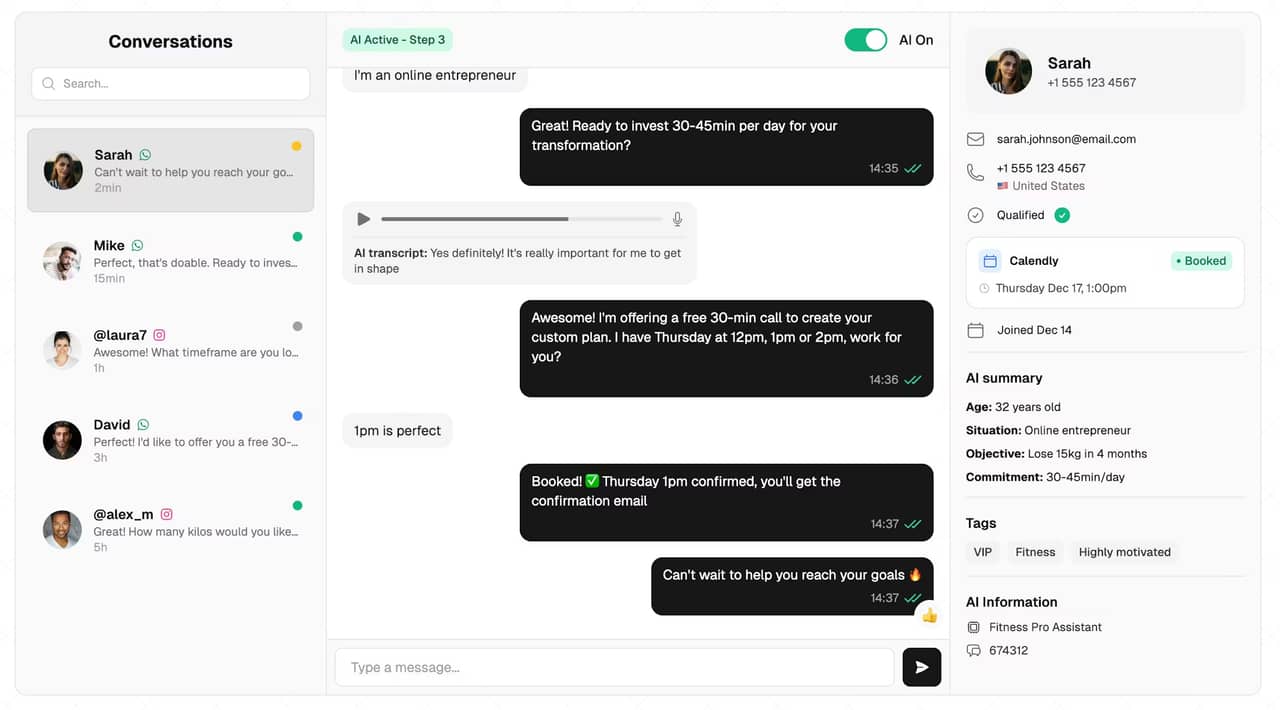
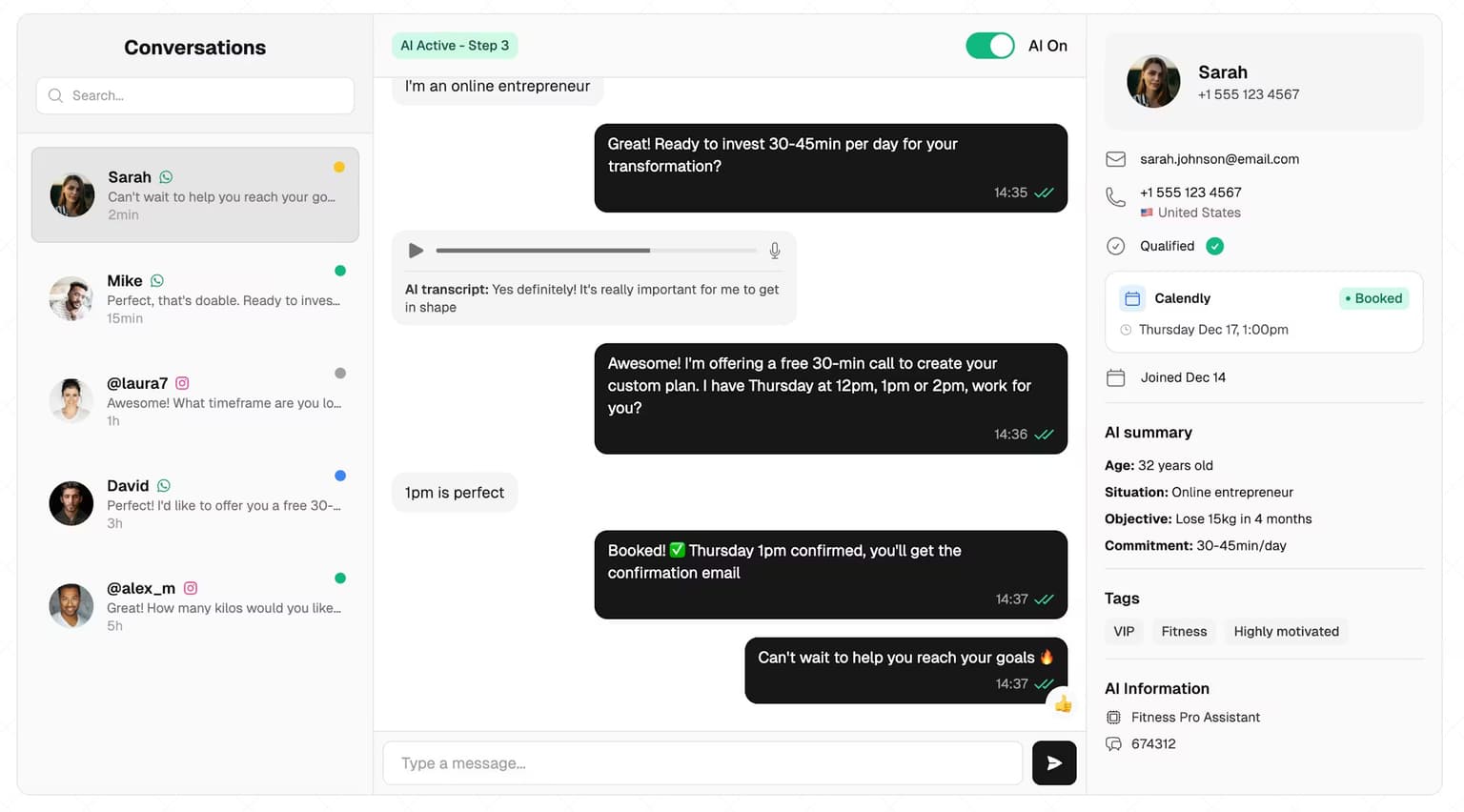
That is the job of an AI setter connected to your WhatsApp number. With SetSmart, every 1:1 chat gets an instant reply, the AI asks your qualifying questions, follows up when a lead goes quiet, and books the sales call in your calendar. SetSmart works in private chats, not inside your community groups. You can tell it what to do once a lead qualifies, for example invite them to your free challenge community or book them straight onto a call, and its lead summary can count "joined the WhatsApp group" or "confirmed for the live" as a qualification criterion. Booking confirmations and cancellations can go out as approved WhatsApp message templates.
Mathis Ladoué, an online fitness coach, put the result simply: "I book 15 to 25 calls per week... without managing a single setter." The community then does what it is good at: delivering the program to the people who said yes. For the full picture of how the pieces connect, see our guides to WhatsApp automation and the WhatsApp chatbot.
FAQ
What is the difference between a WhatsApp community and a group?
A group is a single chat where every member can post and see each other's numbers, with a cap of 1,024 members. A community is a container that links up to 100 groups under one name and adds an Announcements group where only admins post to every member. A community holds up to 2,000 members in total and hides member numbers in Announcements from everyone except admins.
How many members can a WhatsApp community have?
Up to 2,000 members, according to WhatsApp's Help Center. That total includes everyone in the community's groups and in the Announcements group. Each individual group is still capped at 1,024 members, and a community can contain up to 100 groups. When the community is full, new people cannot join until someone leaves.
Can I create a WhatsApp community on WhatsApp Business?
Not directly. WhatsApp says you can't currently create a community on the WhatsApp Business app. You can own one if you created it on the regular WhatsApp app and later registered that number as a business, or if a community admin on the consumer app transfers ownership to your business number.
What are the disadvantages of WhatsApp communities?
The main ones are the 2,000-member cap, no way to create a community from the Business app, no analytics, no public discovery, muted and minimized replies in Announcements, and the fact that admins can see every member's number. Communities also have no payment or access control, so you must remove former clients manually.
Where do I find communities on WhatsApp?
Open the Communities tab in the app. A community also appears in your Chats list with a square icon instead of a round one. In the WhatsApp Business app, tap More options, then Communities. Communities are not searchable, so you can only join one through an invite link, a QR code or an admin adding you.
Can members of a WhatsApp community see my phone number?
In the Announcements group, other members cannot see who the members are, but community admins can see every member's number. If an admin @mentions you in Announcements, your number is exposed to the whole community. Inside the topic groups, other members can generally see your number the way they would in any WhatsApp group.
SetSmart's AI answers every private WhatsApp chat in seconds, qualifies each lead, follows up automatically, and books the sales call in your calendar, so your community fills with clients who already said yes. Free 7-day trial, then $97/month with 1,000 messages included.
Ready to automate your DMs?
Start your free 7-day trial and let AI handle your lead qualification 24/7.
Try SetSmart free